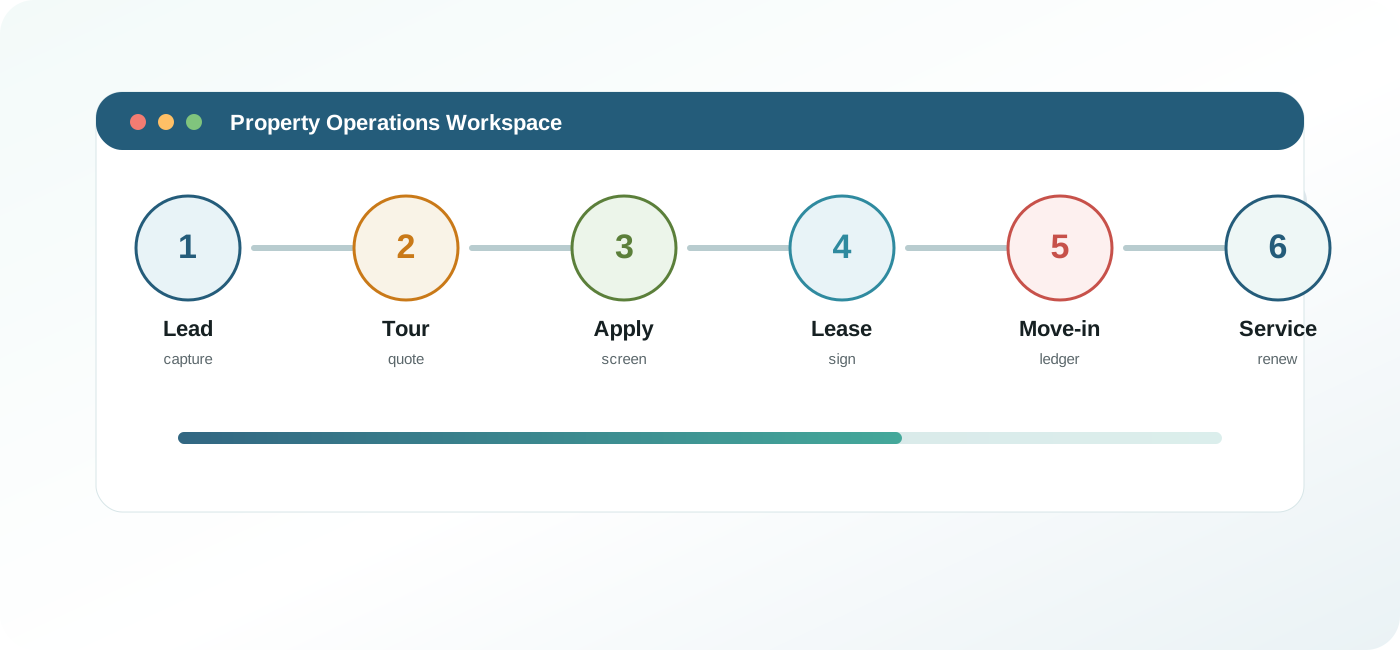
Capture the lead
Record the prospect, source, preferred unit type, budget, move-in timing, communication preference, and next action. Clean lead data keeps follow-up queues and conversion reports useful.
Property operations manual
A practical guide for team members who use Entrata to manage leads, applications, leases, residents, payments, maintenance requests, collections activity, reporting, and integrations.
Start here
Most Entrata work starts with a lead or resident request and ends when the next action is clearly documented. Good records connect leasing, onsite operations, maintenance, accounting, and resident service.
Click each hotspot to see what the learner should know before moving to the next step.
Record the prospect, source, preferred unit type, budget, move-in timing, communication preference, and next action. Clean lead data keeps follow-up queues and conversion reports useful.
Choose a daily lens
Each team sees the same resident lifecycle from a different angle. Use the tabs to focus on the records, checks, and handoffs that matter most for that role.
Leasing users protect the top of the lifecycle. The goal is to turn every inquiry into a complete, searchable, reportable record with a clear next step.
Access and expectations
Entrata can hold sensitive prospect, applicant, resident, financial, maintenance, and vendor data. Work only in records you are authorized to access.
Your access may be limited by property, portfolio, job function, or module. If a menu or action is missing, confirm whether your role should have it before requesting changes.
Do not place Social Security numbers, full payment details, medical information, or private dispute details in general notes unless your policy explicitly allows it.
Keep lead, resident, ledger, document, and work order updates inside Entrata. Avoid side spreadsheets for operational status unless they are approved controls.
Orientation
Most users sign in through a company URL or single sign-on, then select the property, dashboard, or module that matches their work. Your company may rename modules or restrict access.
Start from the dashboard or task queue, verify the property context, search for the correct person or unit, and open the record from the most relevant module. Use browser tabs carefully because account and property context can change.
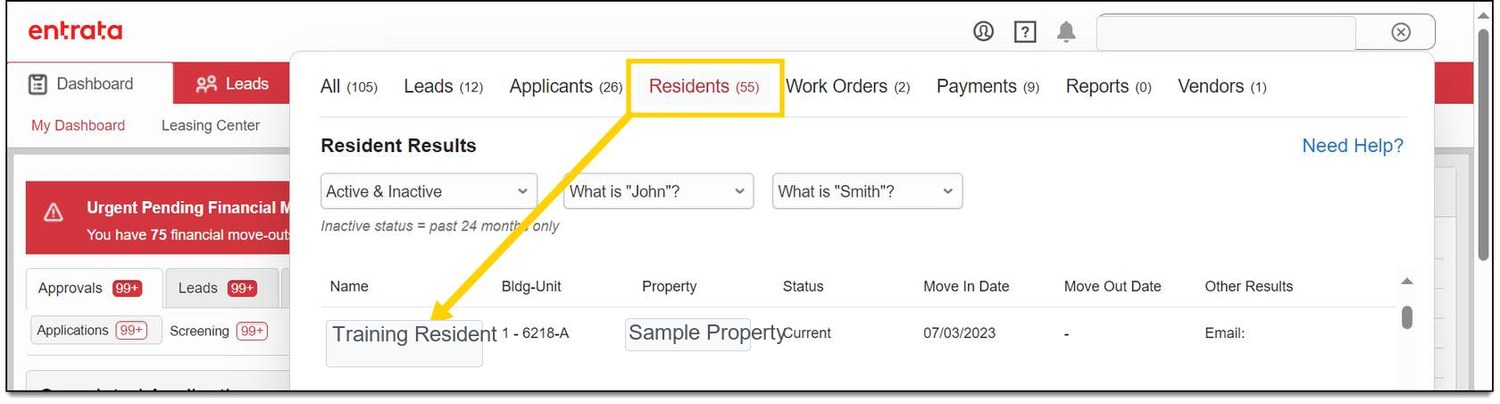
Search by exact resident name, prospect name, unit, application, work order, phone number, or email when available. If you cannot find a record, check spelling, prior names, transfer status, and archived or inactive records before creating a duplicate.
If a page appears empty, confirm property selection, date filters, assigned-to filters, role permissions, and whether the record is archived, canceled, transferred, or resident-facing only.
Search review
Click a marker to review what to confirm before opening a result or creating a new record.
Search with the most specific details you have: full name, phone, email, unit, application, or work order number. If the record is not obvious, check the result type and property before creating anything new.
Daily work
The dashboard is the starting point for task-driven work: leads, applications, move-ins, notices, delinquency, maintenance, resident messages, expiring leases, and operational metrics.
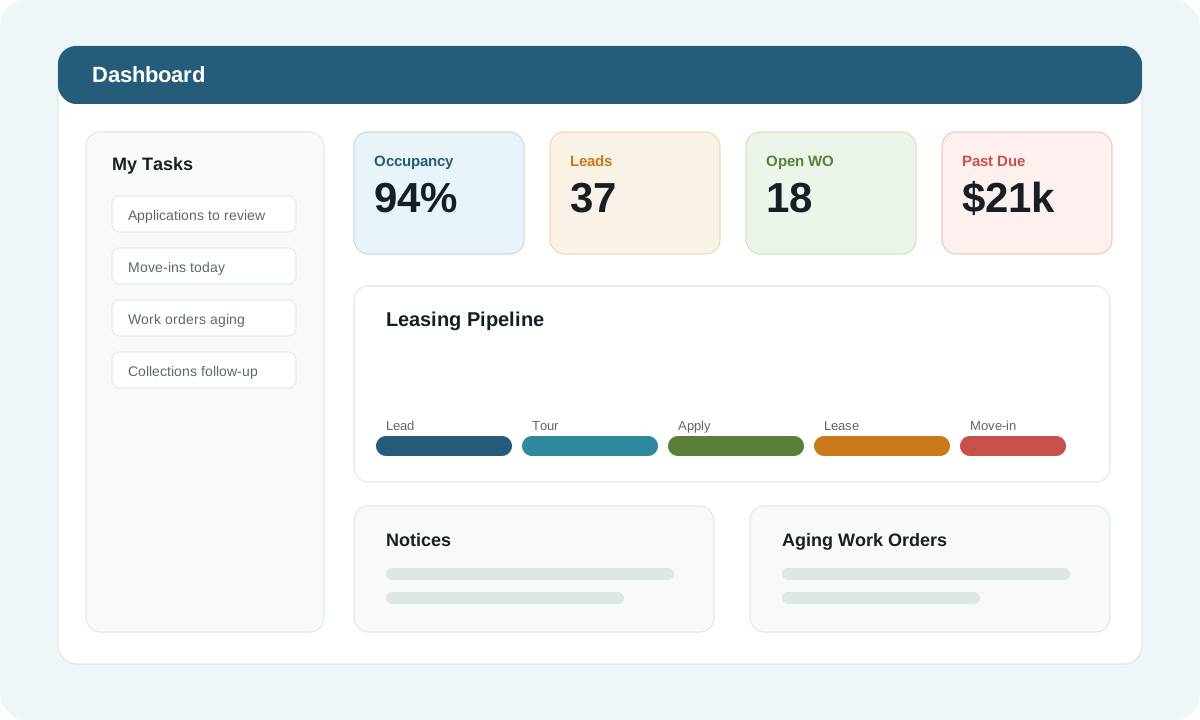
Prioritize overdue tasks, unanswered messages, unassigned work orders, pending applications, and move-ins due soon.
Check property, team, date range, status, and ownership filters before assuming a metric is wrong.
Closing a task should leave a clear record of who acted, what changed, and what follow-up remains.
Leasing pipeline
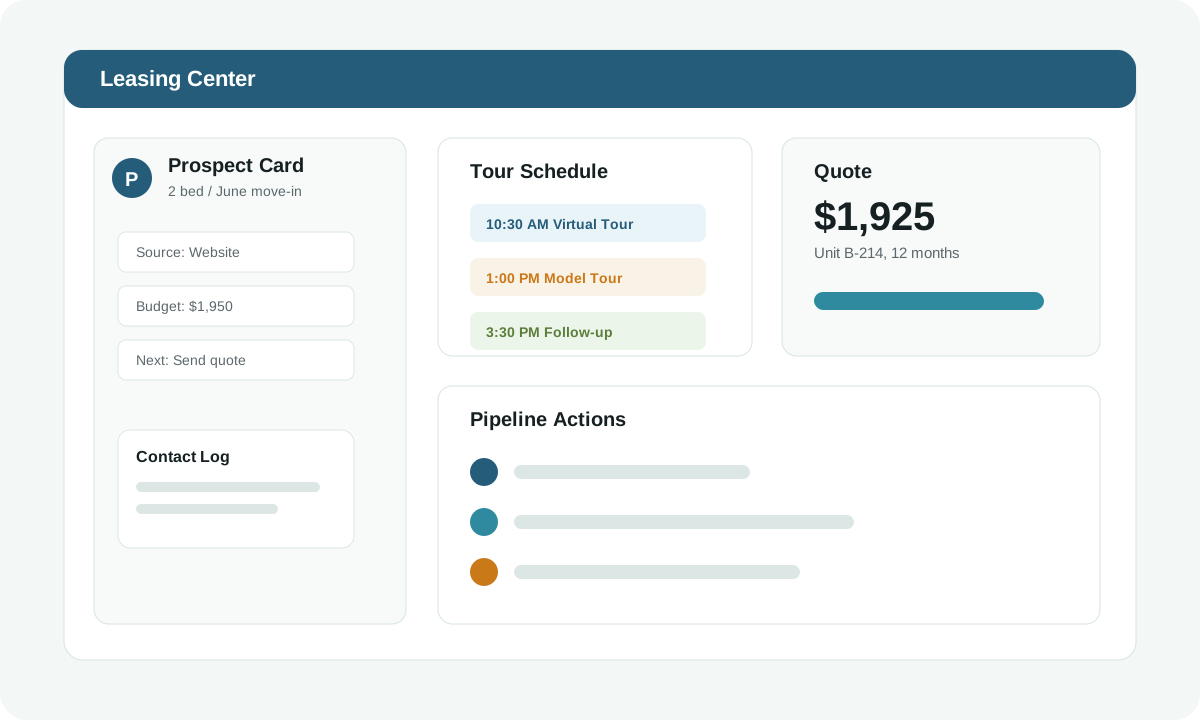
Leasing activity should make the prospect journey clear: how the lead arrived, what the prospect wants, what was offered, and what happens next.
Automated lead intake
When Elise AI is configured with Entrata, it can respond to prospect inquiries, gather qualifying details, create or update guest cards, and schedule tours based on availability rules exposed to the integration.
Elise may collect name, contact details, desired move-in date, bedroom type, budget, pets, and preferred tour timing through chat, SMS, email, or web lead channels.
The integration can pass the lead into Entrata with source, preferences, notes, and contact information so staff see the prospect in normal leasing queues.
If tour scheduling is enabled, Elise uses configured availability, leasing hours, appointment types, and property rules to place a tour on the calendar.
Leasing staff should review the guest card, appointment, AI notes, contact consent, and unit preferences before the tour or next outreach.
Quote the correct unit, term, rent, fees, concessions, deposit requirements, and expiration. If pricing changes, create a new approved quote rather than relying on an old message.
Close a lead only when the prospect is no longer active, selected another property, is unqualified under approved policy, or requested no further contact. Nurture a lead when the prospect still has intent but needs a later move-in date, a different unit type, roommate coordination, guarantor details, or manager follow-up.
Application review
Application work typically combines applicant information, identity checks, screening results, fees, documents, and policy decisions. Your company should define exactly who can approve, conditionally approve, deny, or request more information.
Never override screening, income, identity, occupancy, or fair housing controls without documented authority. Notes should be factual, professional, and consistent with company policy.
Move-in readiness
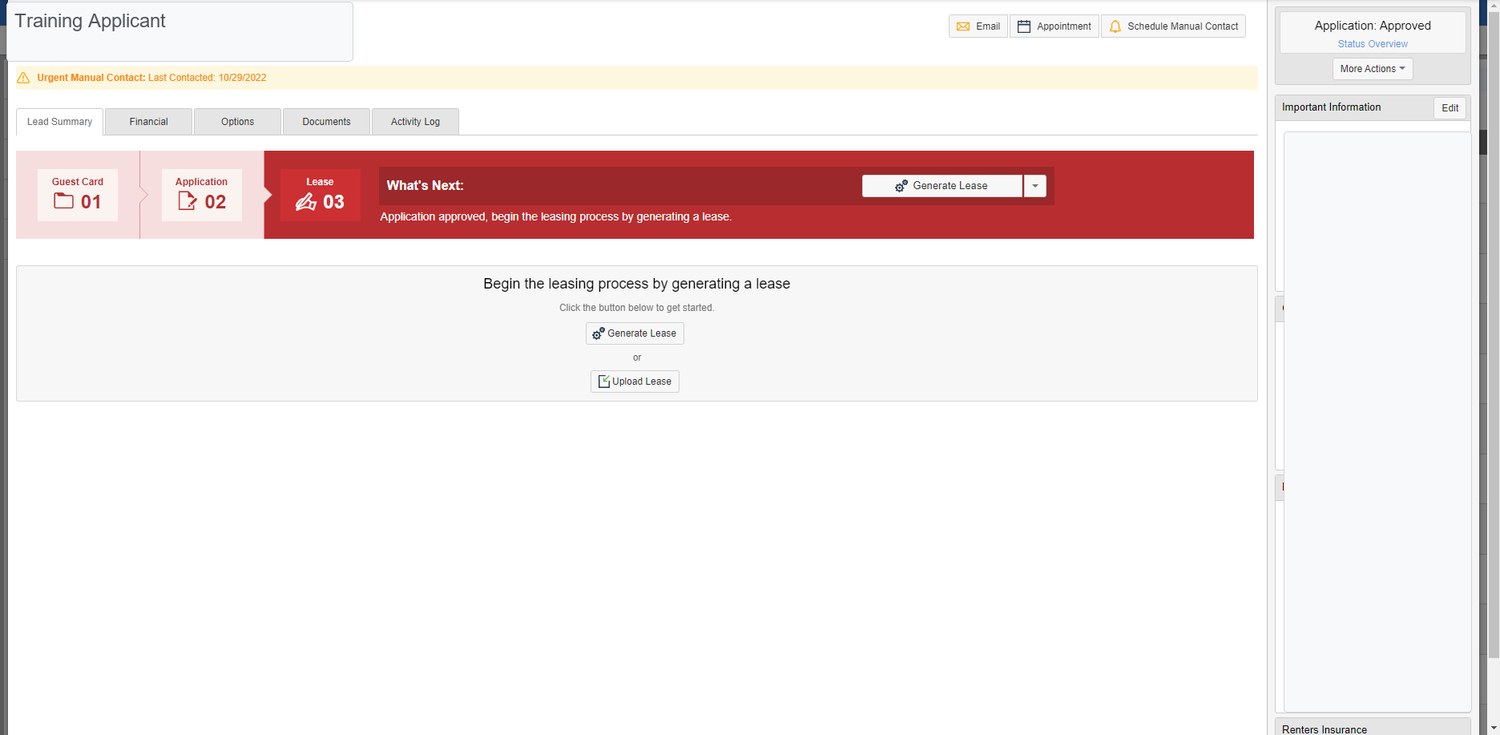
Lease generation and move-in work should align the approved application, pricing, unit, dates, addenda, signatures, deposits, utilities, insurance, and resident account setup.
Verify unit, lease term, rent, fees, concessions, occupants, pets, vehicles, deposits, guarantors, addenda, and document package. Escalate mismatches before sending signatures.
Confirm signed documents, move-in money, insurance, utilities, keys or access credentials, inspection status, and resident portal setup. Do not mark move-in complete until your company criteria are met.
 Screenshot
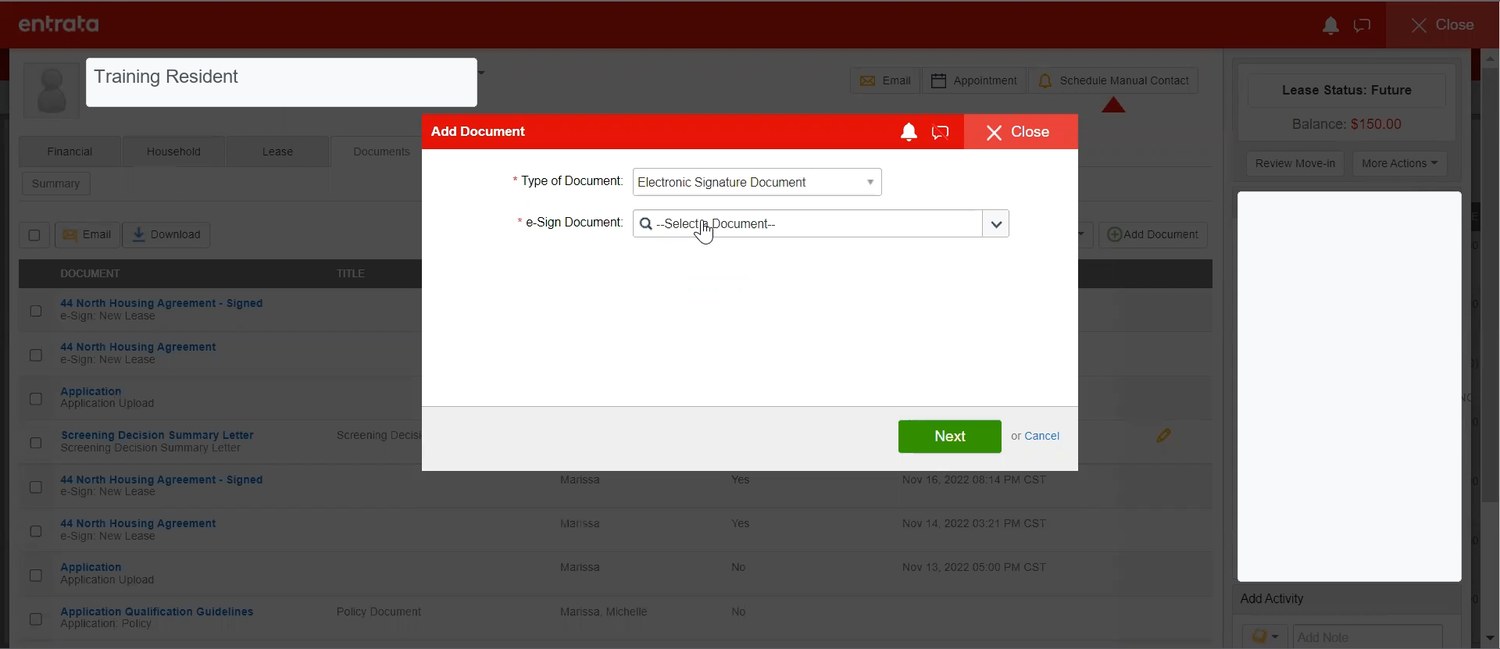
Add a document
Screenshot
Add a document
Use the document modal to select the approved document type and route electronic signatures when your workflow requires it.
 Screenshot
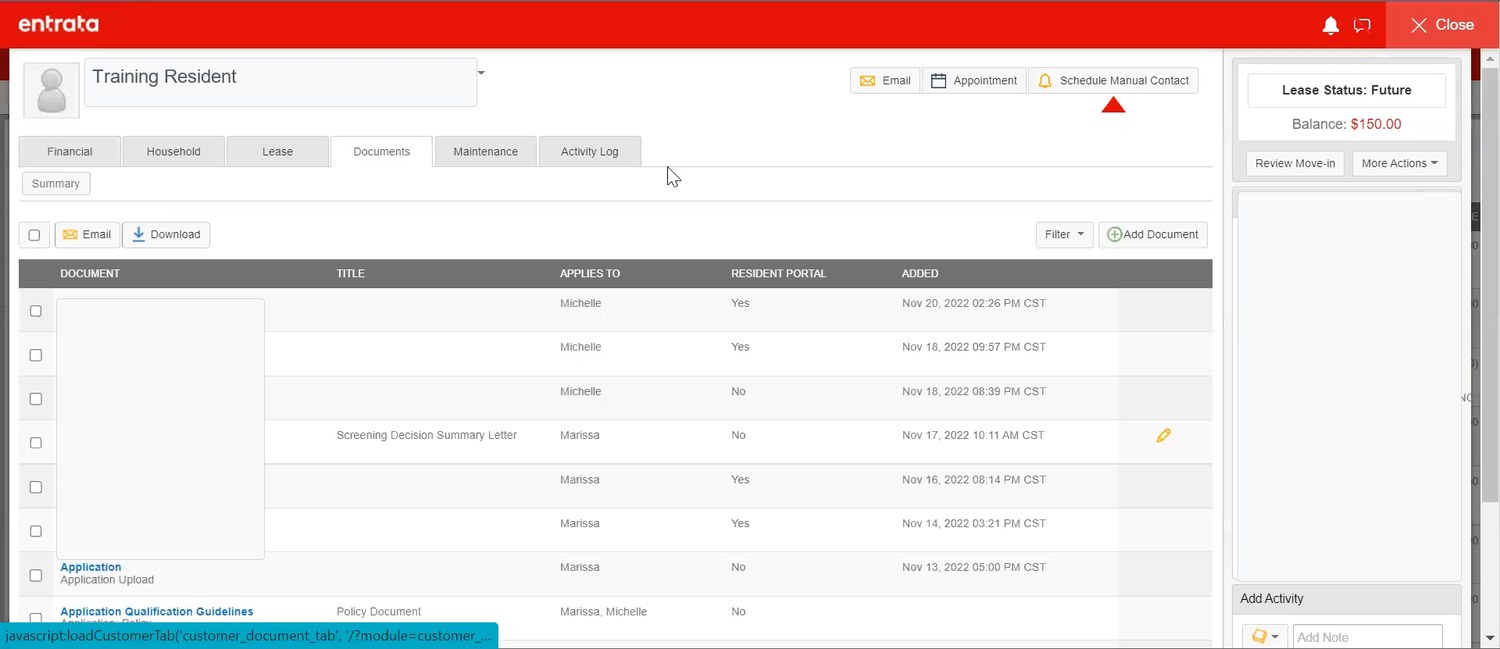
Review documents
Screenshot
Review documents
Confirm which documents are resident-facing, signed, pending, uploaded, or missing before moving the lease or move-in forward.
 Screenshot
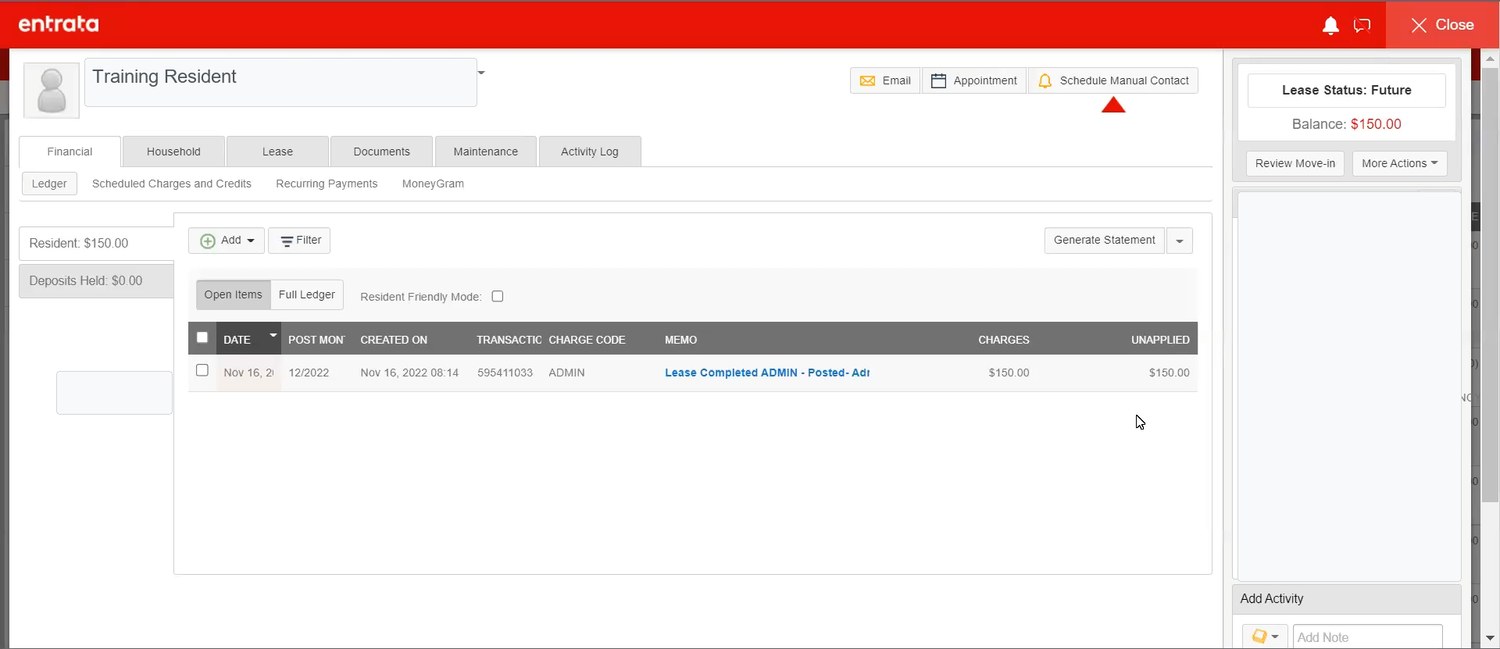
Check ledger setup
Screenshot
Check ledger setup
Review balances, deposits, charges, credits, and pending activity before marking move-in tasks complete.
Optional video practice
Use the videos to connect the written steps to the rhythm of real leasing work: appointments, record updates, documents, and move-in handoffs.
Resident account
The resident profile connects contact information, lease details, documents, messages, work orders, payments, charges, credits, balances, and renewal activity.
Review lease status, current balance, pending payments, deposits, concessions, notices, messages, documents, and open work orders before answering resident questions.
Notes should state what happened, who requested it, what you did, and what follows next. Avoid emotional language, unsupported claims, or sensitive data that belongs in restricted documents.
Resident self-service
ResidentPortal gives residents a self-service path for payments, maintenance requests, documents, messages, announcements, and account information when enabled by the company.
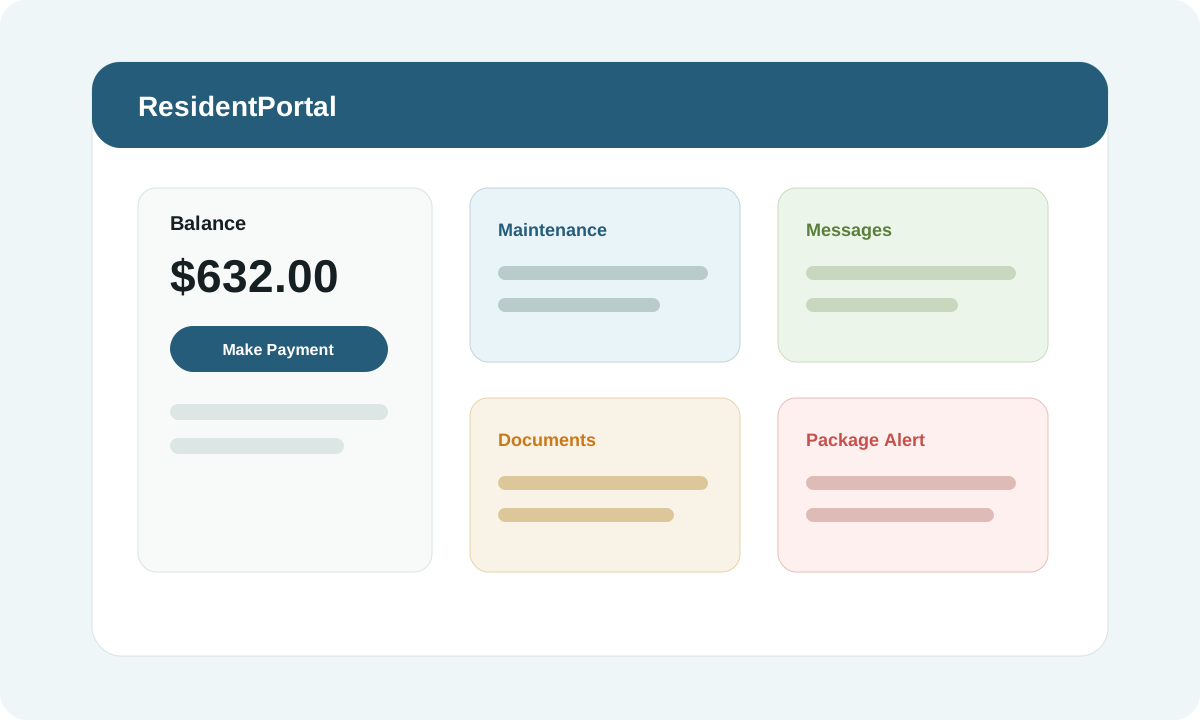
Residents may be able to make one-time payments, set up autopay, review balances, and see payment confirmations. Staff should check pending payments before changing balances.
Residents may submit service requests with descriptions, permissions to enter, photos, pets, and preferred contact details. Staff should avoid closing requests without clear resolution notes.
Resident-facing documents and messages should be approved, accurate, and written in company voice. Confirm the audience before publishing anything broadly.
Service requests
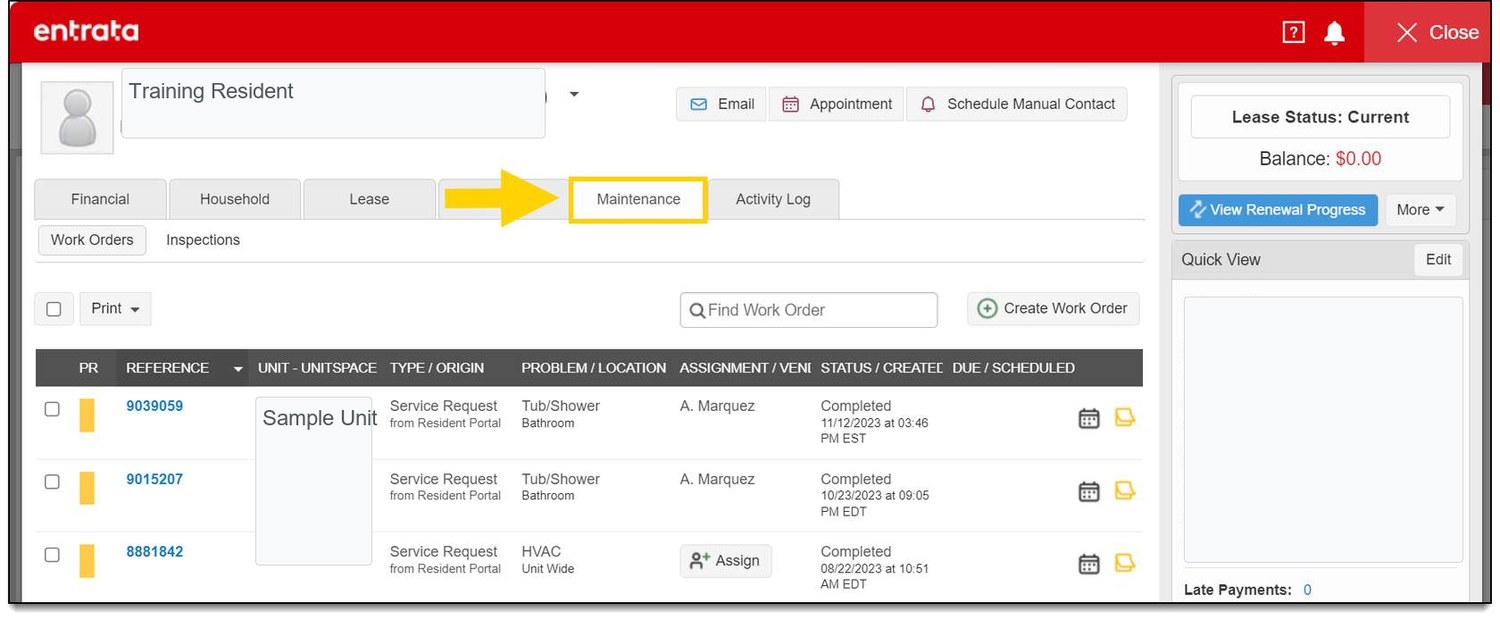
Maintenance records should show the request, priority, permission to enter, photos, assignment, parts, labor, notes, completion, and resident communication.
 Screenshot
Make ready queue
Screenshot
Make ready queue
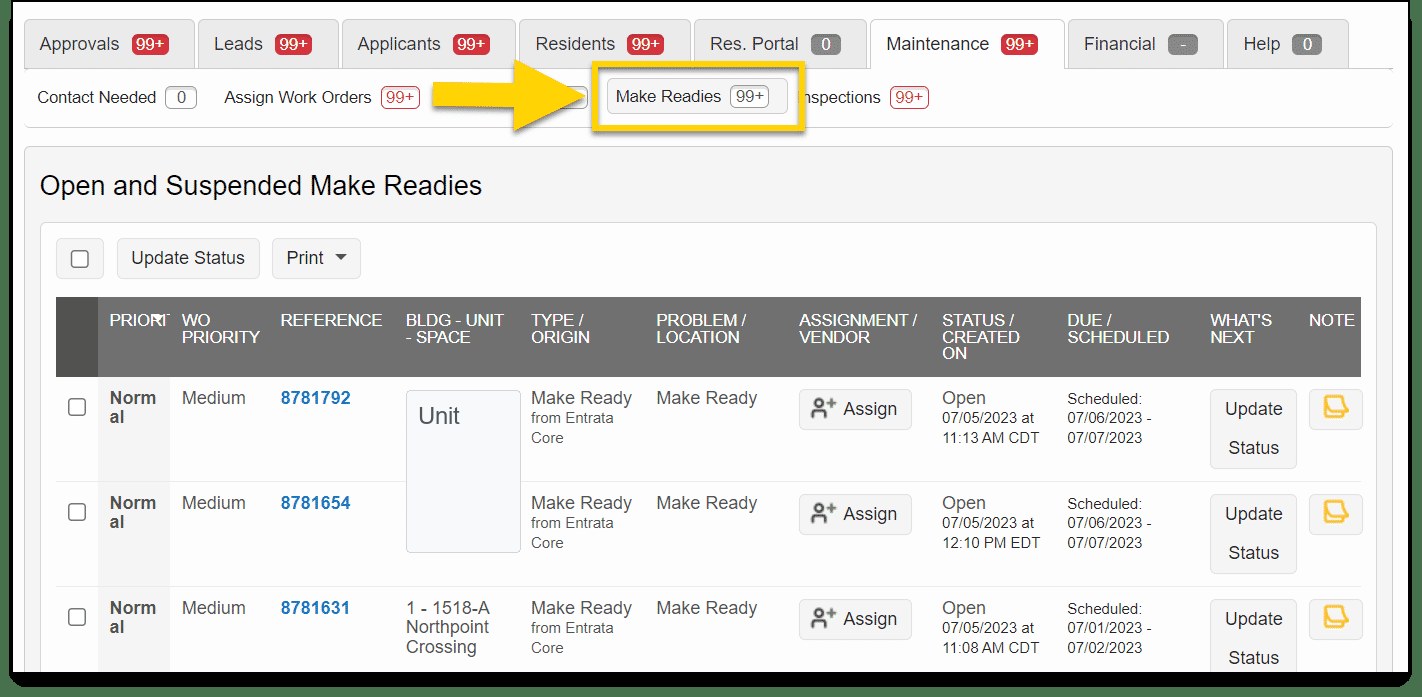
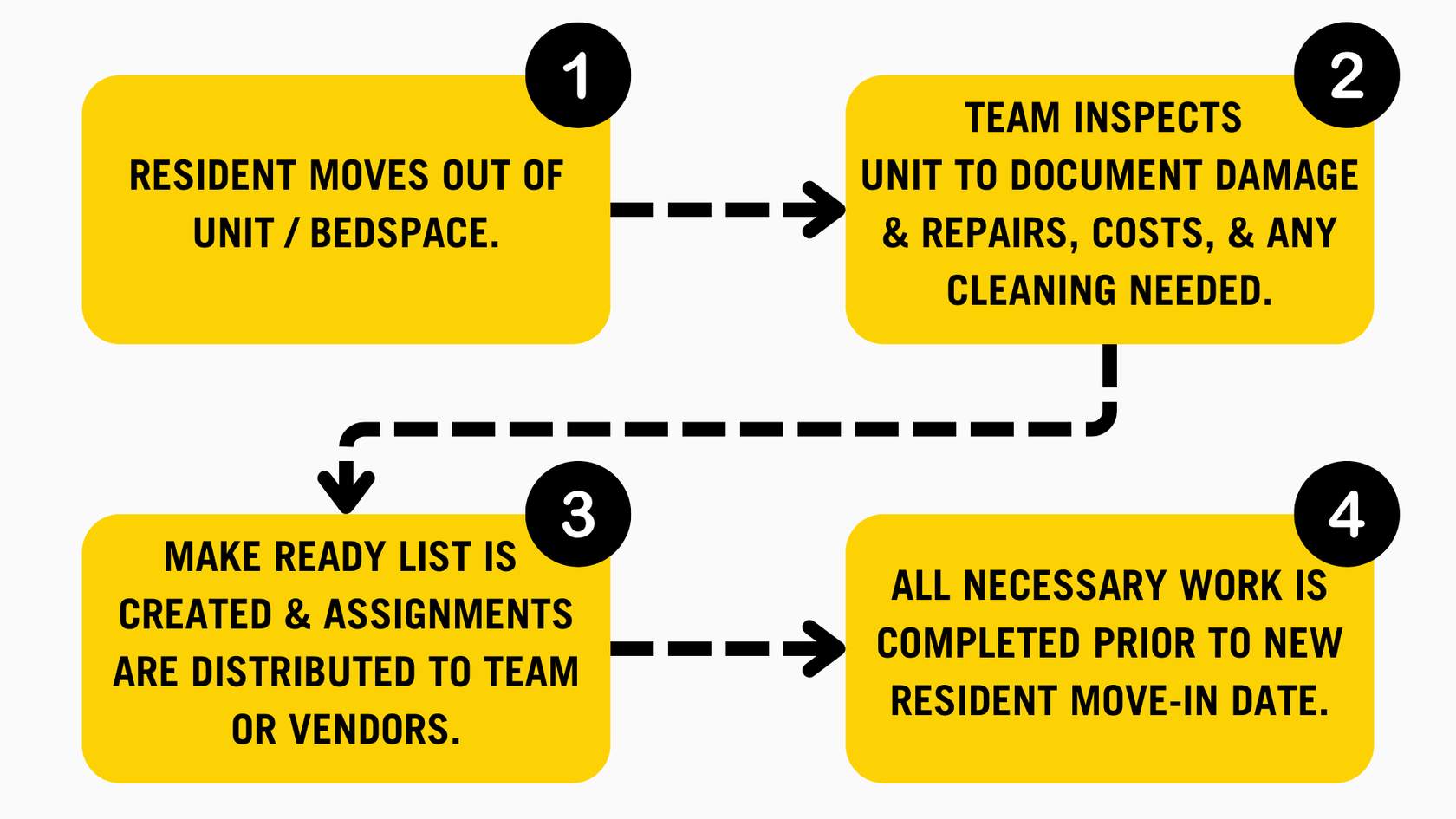
Use make-ready status to track units that need cleaning, inspection, repair, assignment, or scheduling before move-in.
 Screenshot
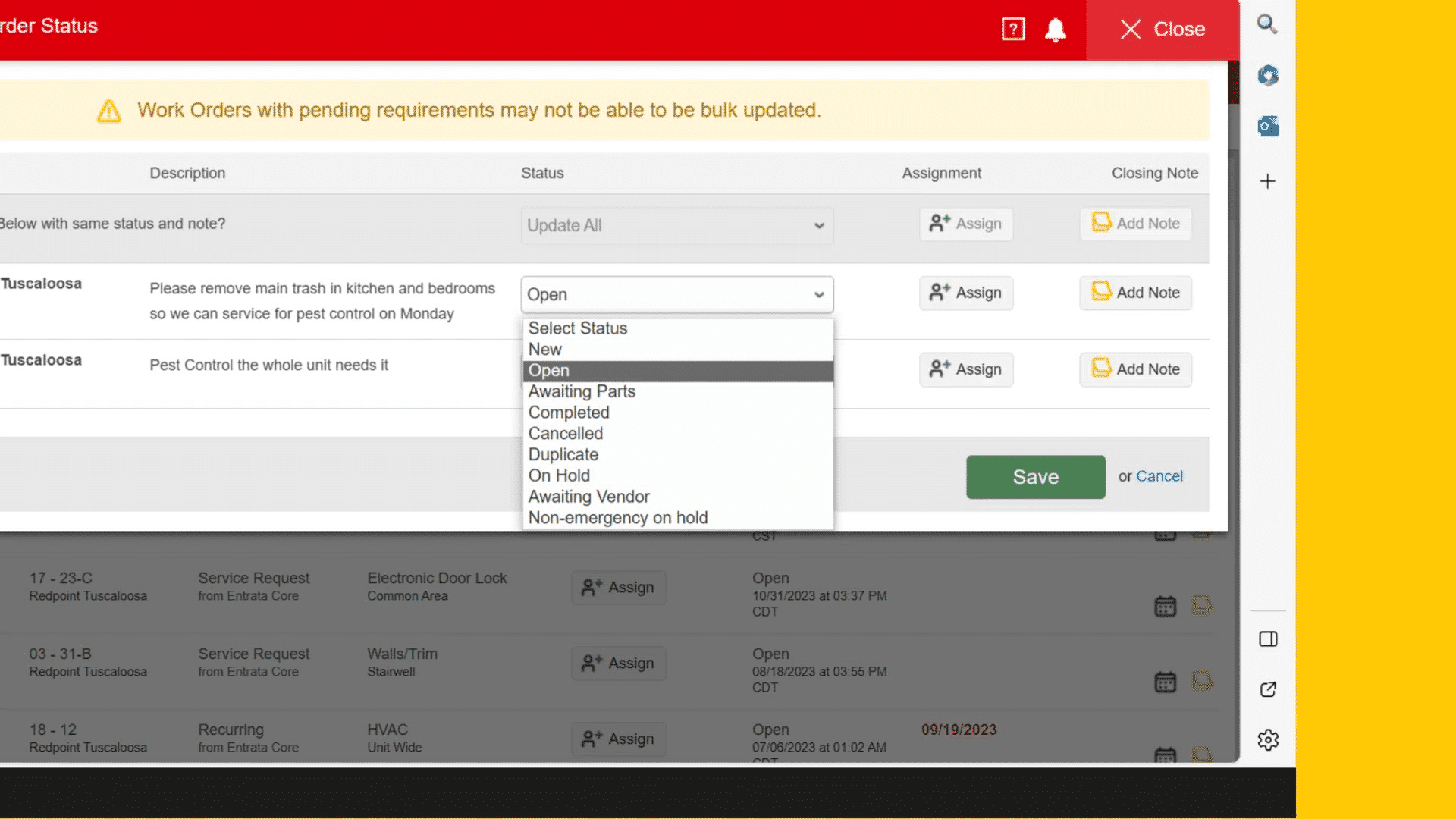
Bulk update status
Screenshot
Bulk update status
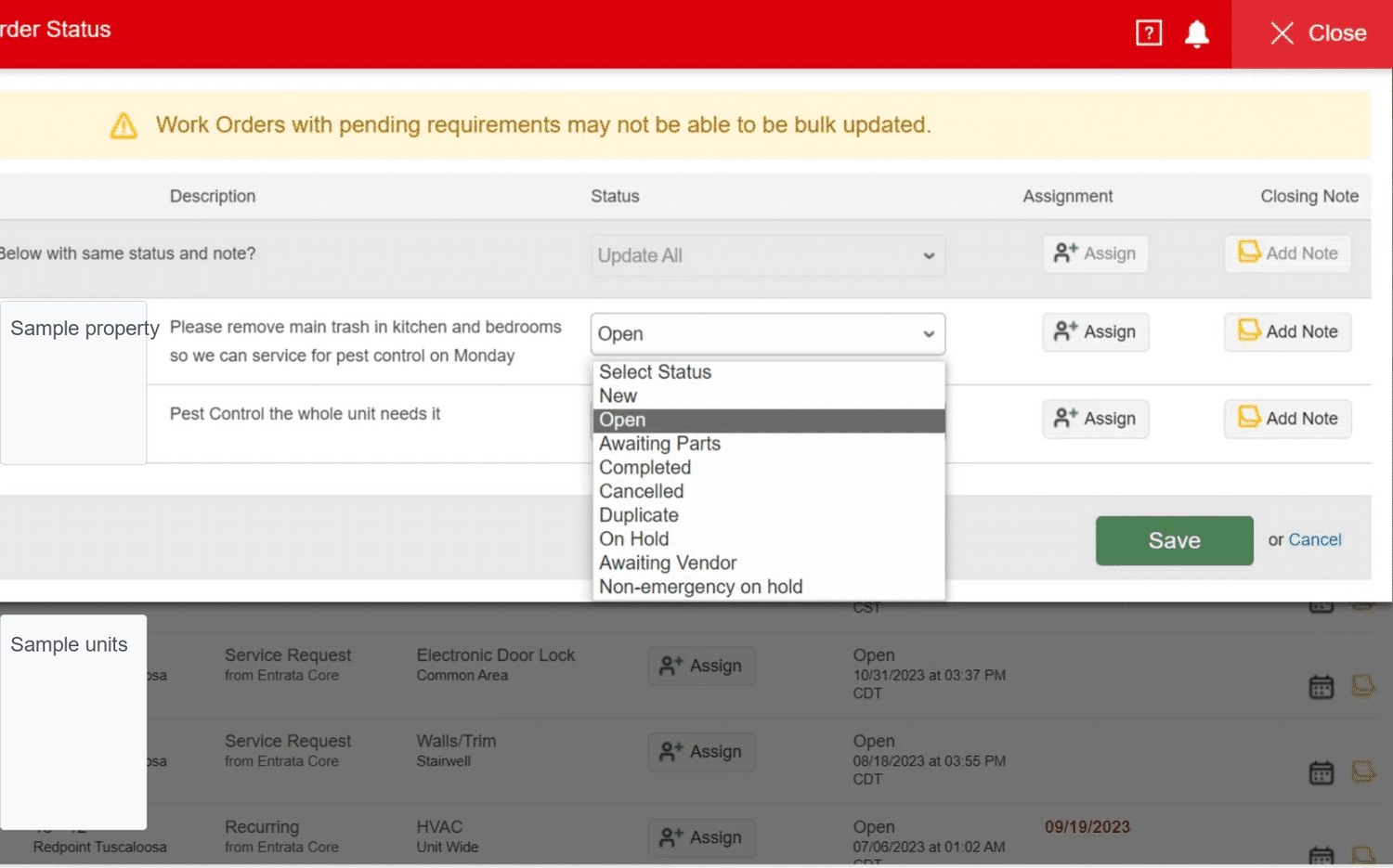
Bulk updates can save time, but review each order first when requirements, assignments, notes, or resident communication differ.
 Screenshot
Status choices
Screenshot
Status choices
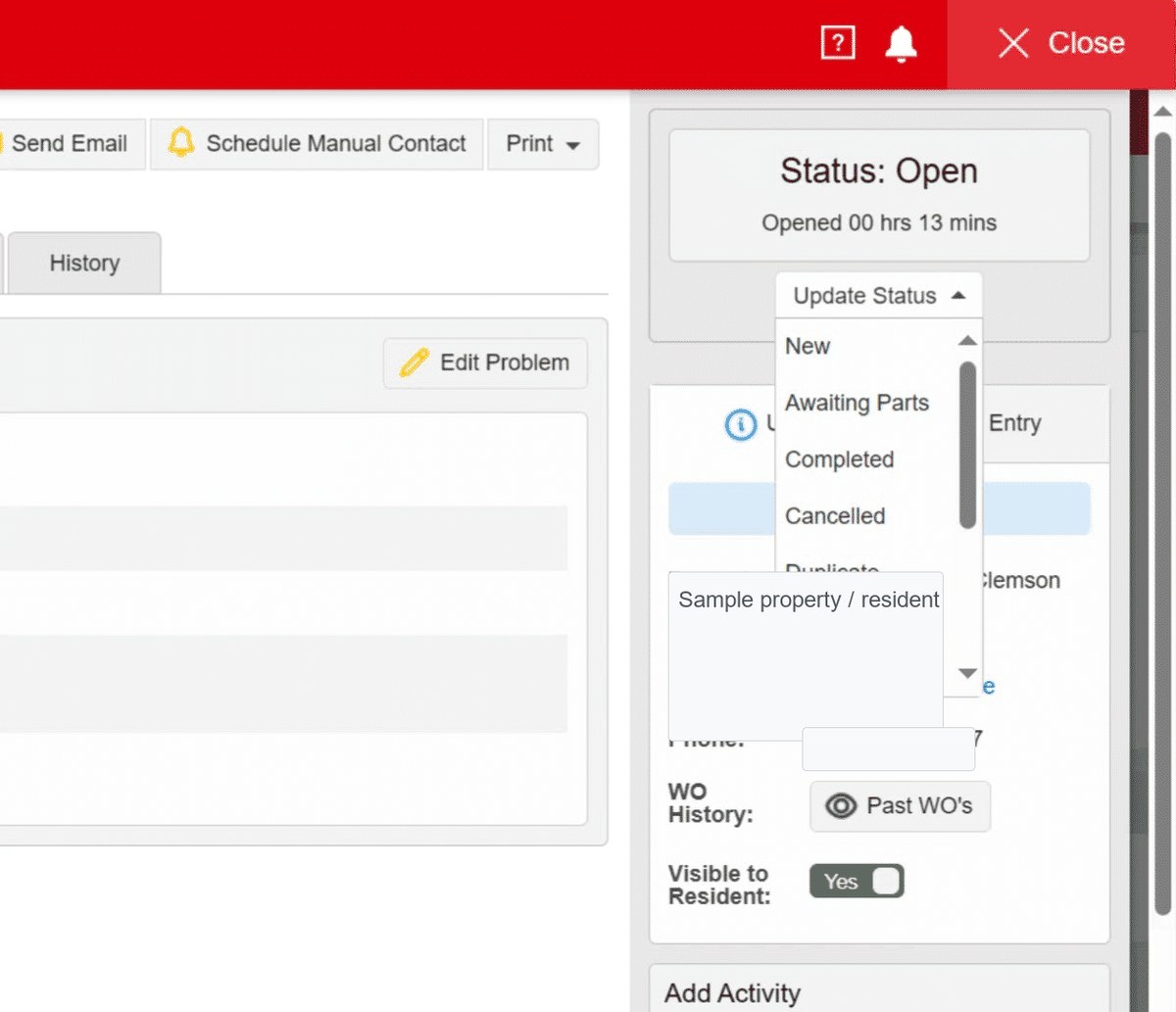
Choose statuses that reflect the actual state: new, open, awaiting parts, completed, cancelled, duplicate, on hold, or awaiting vendor.
 Screenshot
Mobile inspections
Screenshot
Mobile inspections
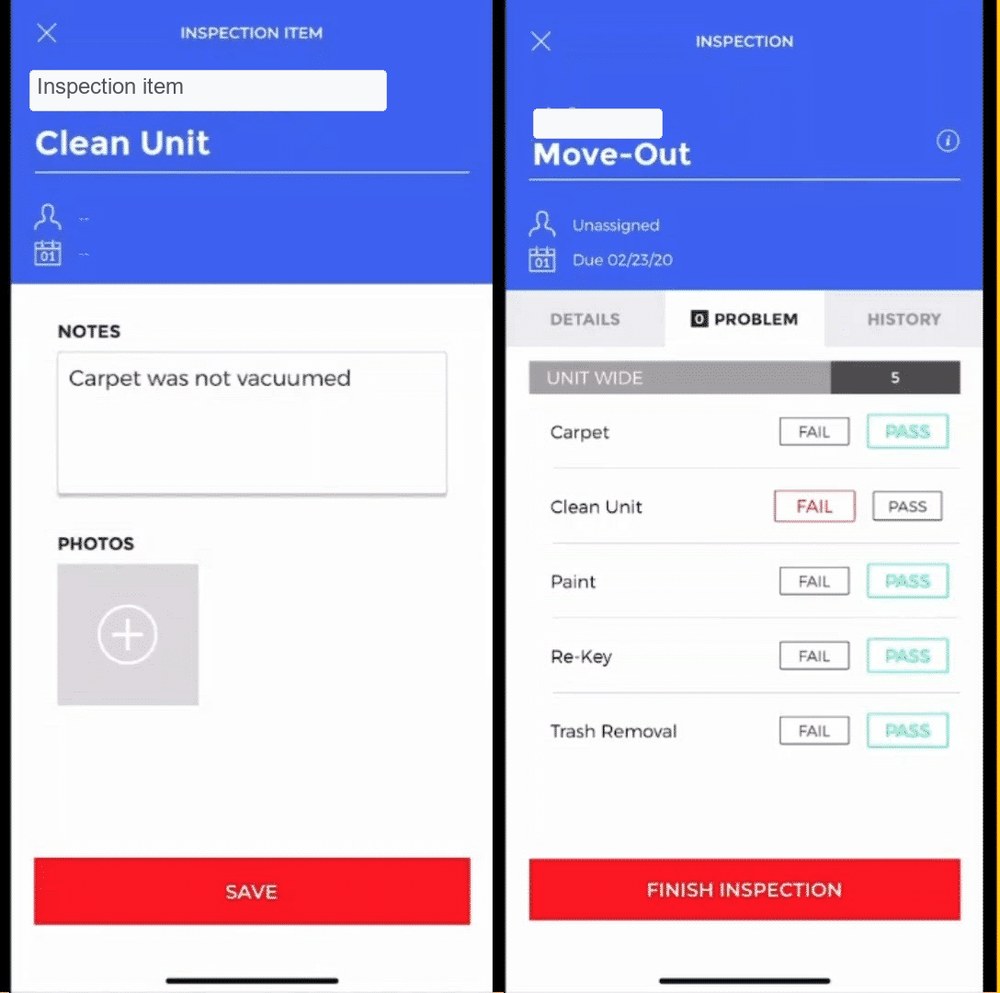
Mobile inspections are useful for onsite notes, photos, pass/fail items, and completion evidence while the condition is still visible.
 Screenshot
Assign work orders
Screenshot
Assign work orders
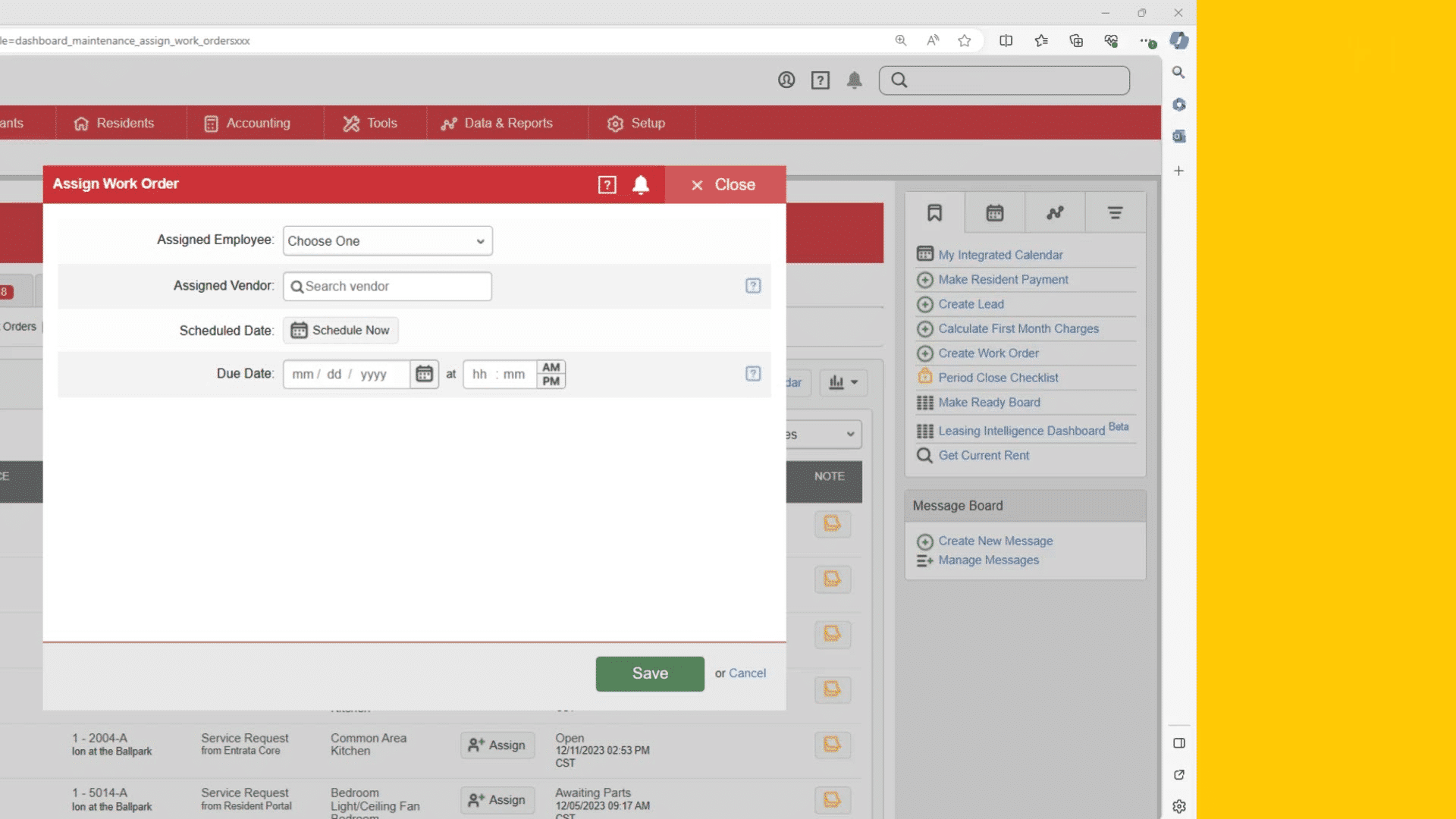
Assignments should show whether the request belongs with an employee, vendor, scheduled date, or due date.
 Screenshot
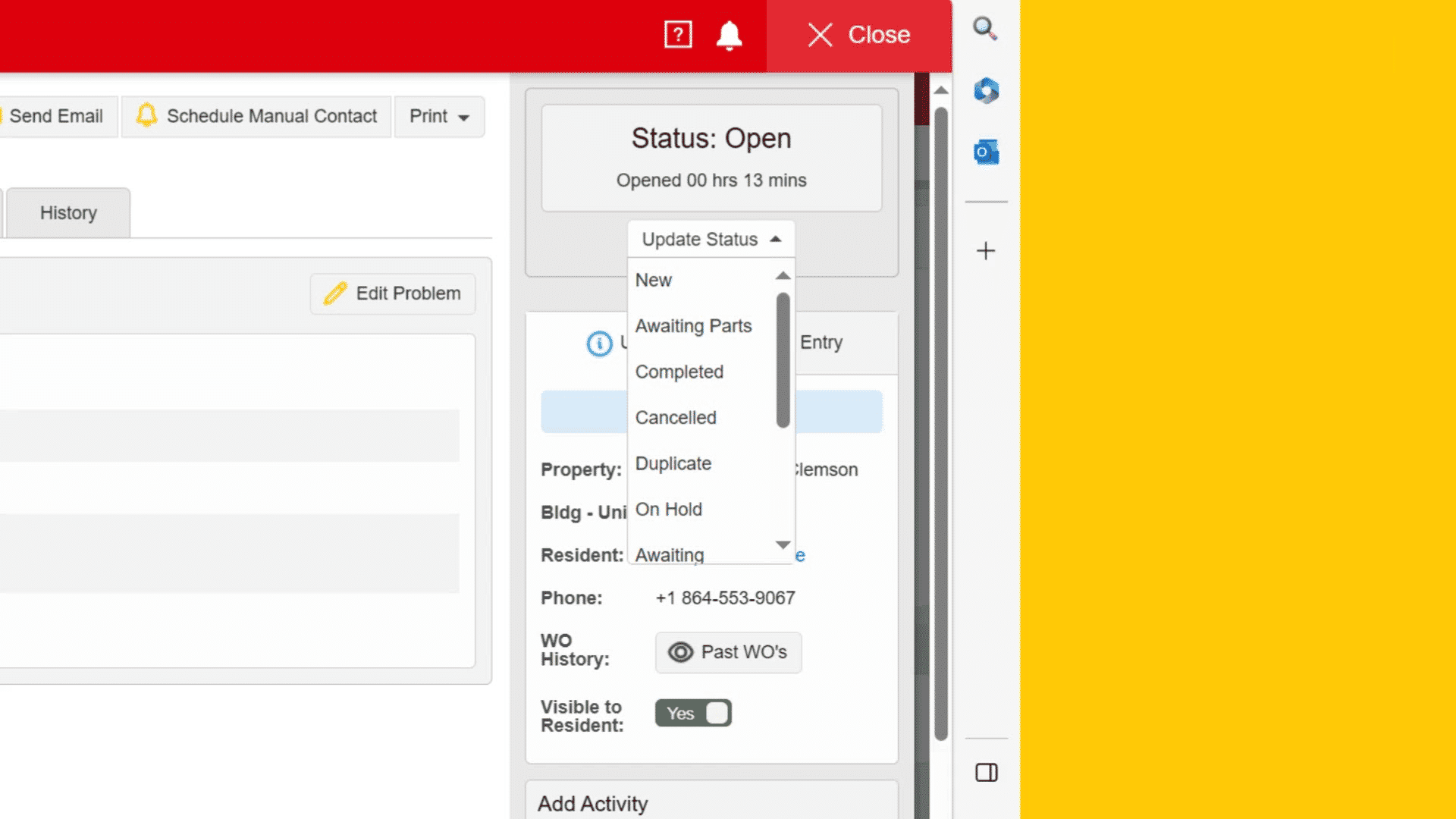
Update status
Screenshot
Update status
Status menus help teams communicate whether work is new, open, waiting, completed, cancelled, duplicated, or on hold.
 Screenshot
Update the order
Screenshot
Update the order
Use problem details, status, visibility, notes, attachments, expenses, and history to keep the record complete.
 Animated example
Work order queue
Animated example
Work order queue
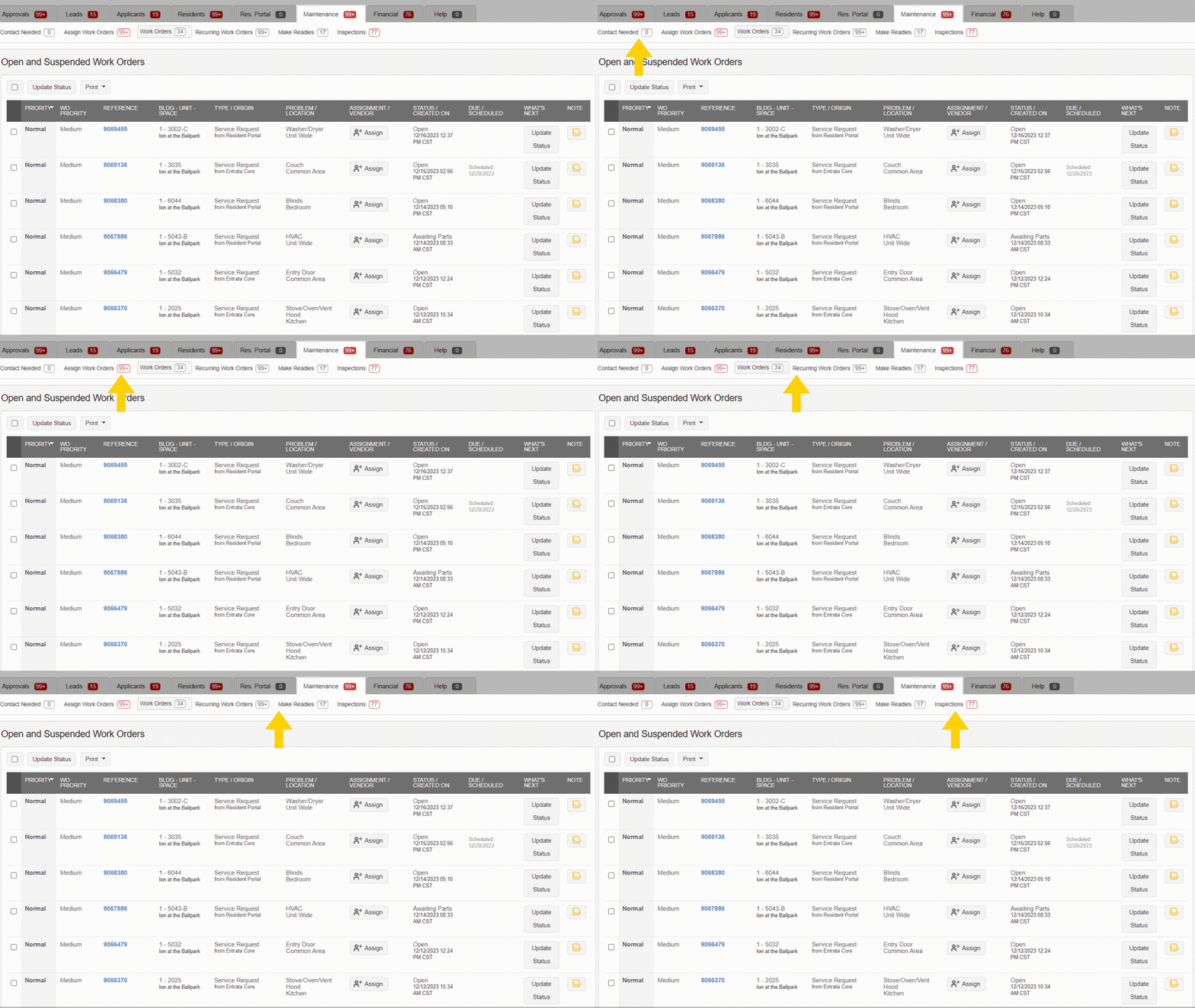
The maintenance queue should be reviewed by priority, age, assignment, status, due date, and resident impact.
 Animated example
Offline mode
Animated example
Offline mode
Offline workflows require users to sync once they are connected again so notes, photos, and status changes reach Entrata.
Status practice
Select a status to see when it fits and what should be documented before saving the update.
Use New when the request has been created but has not been assigned or started. Confirm category, priority, resident permission, photos, and safety concerns before dispatch.
Facilities media practice
Use these short demos when training maintenance users. Each tab groups videos by the workflow decision the learner is practicing.
Use as the starting demo for facilities users who need to understand where work orders, make-ready, inspections, and offline tools fit.
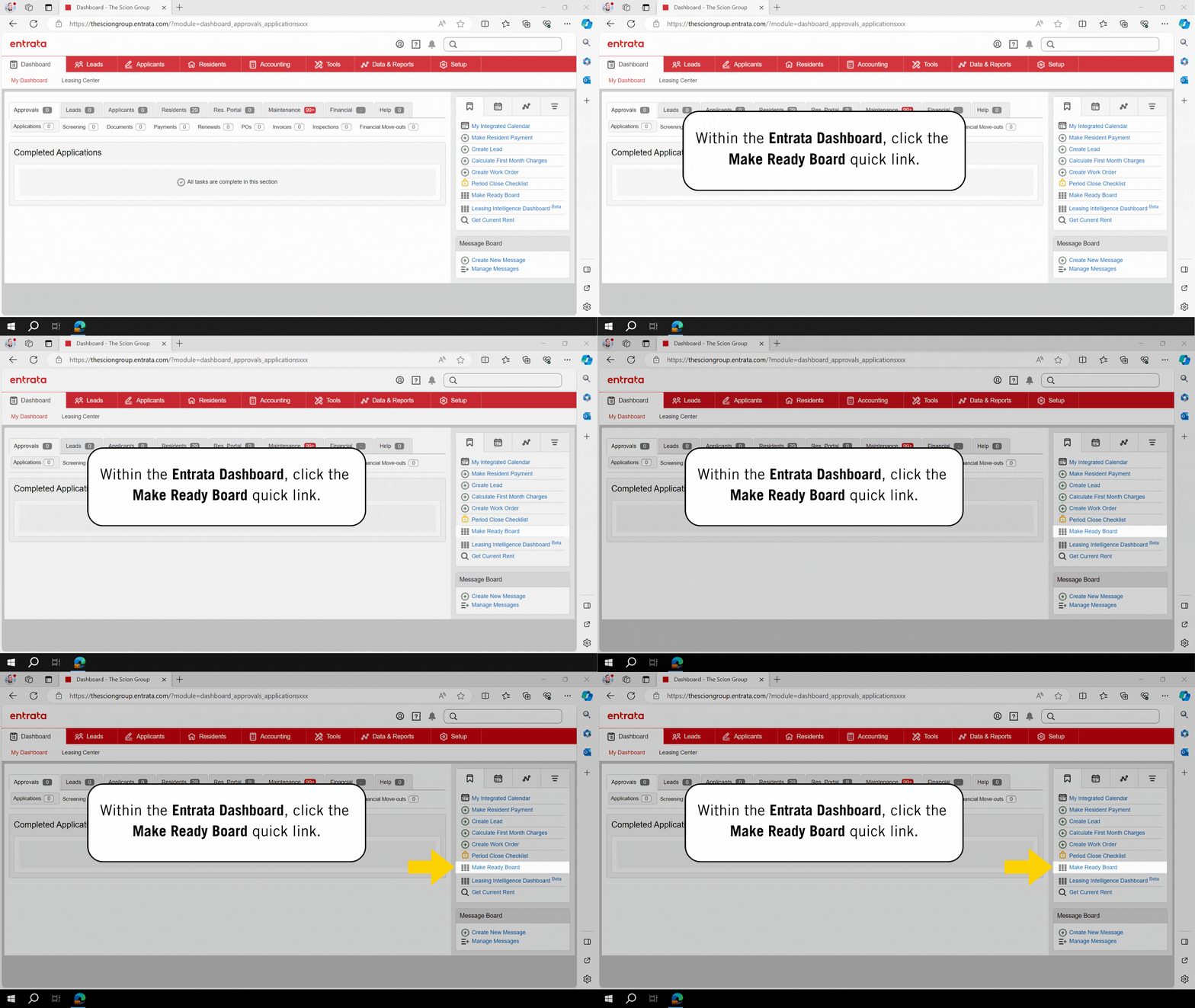
Shows how the make-ready board is reached from the operational dashboard and why property context matters.
Shows the resident-facing intake path so onsite teams understand what information may arrive from ResidentPortal.
Use as a quick orientation before comparing the dashboard, residents tab, and facilities app entry paths.
Practice creating work from dashboard queues while keeping the property, category, priority, and owner clear.
Use when the work starts from a resident profile and the user must confirm the unit, lease status, and contact context.
Shows how field users can create requests while capturing the details needed for assignment and follow-up.
Practice creating a work order from dashboard work queues while preserving property, priority, and assignment context.
Use when teaching how resident-submitted requests become work order records with resident-facing details.
Use when the field team needs to create requests away from a desktop while still capturing useful notes and location details.
Use for learners who need to scan open, suspended, aging, and assigned work before deciding what to update.
Shows how status tracking helps the team distinguish active work, blockers, resident updates, and closeout.
Use when teaching how urgency, safety, resident impact, and scheduled timing should influence queue handling.
Explains why resident-facing visibility should match company policy and the message the team intends to send.
Shows how to assign requests to an employee or vendor and why schedule and due dates should be clear.
Use with the status decision helper above so learners connect each status to documentation expectations.
Demonstrates how record updates, visibility, notes, and history support resident service and audits.
Use where coded completion details are part of your company's maintenance closeout process.
Use to show how prior activity, inspection findings, and notes explain why a unit is or is not ready.
Shows how ownership changes should be documented when tasks move between employees, teams, or vendors.
Use when teaching how blockers, due dates, completion evidence, and move-in timing affect status choices.
Use for teams that still need printed checklists while preserving updates and completion notes in Entrata.
Use for supervisors who need to see how make-ready status, assignments, blockers, and move-in deadlines connect.
Shows how task completion should connect to the operational readiness decision before move-in.
Shows the closeout mindset for completing make-ready tasks before the next resident move-in date.
Use with move-in, move-out, and recurring inspection learners who need to attach notes, photos, and findings.
Use for field teams who may lose connectivity and need to understand what must sync afterward.
Balances and follow-up
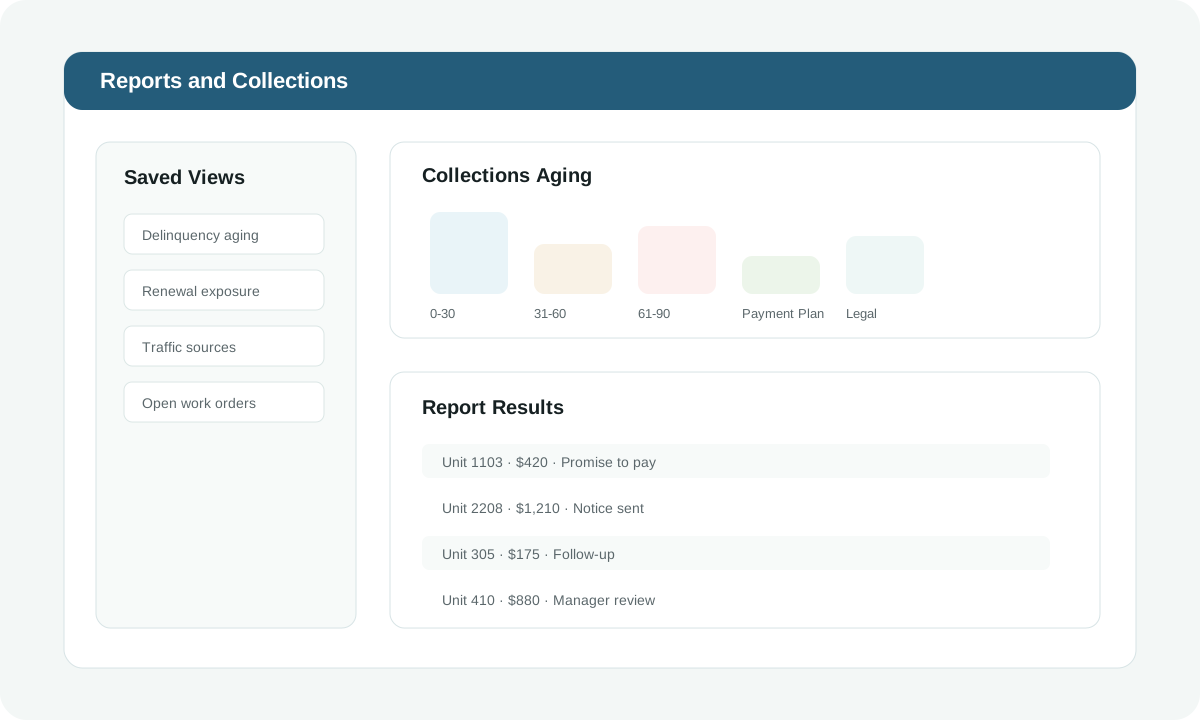
Collections work should follow company policy, lease rules, local law, approved notice language, and documented timing. Entrata records help staff track balances, promises to pay, notices, payment plans, and escalation status.
No past-due action needed beyond normal monitoring.
Review balance, pending payments, notices, and communication history.
Manager, legal, or approved third-party process may be required.
Payment, adjustment, plan, or approved resolution has been documented.
Financial operations
Depending on configuration, Entrata may support property accounting, payables, purchasing, budgets, invoices, deposits, journal entries, bank activity, and financial reporting.
Only authorized users should post, reverse, adjust, waive, or transfer ledger activity. Each change should have a reason, supporting evidence, and approval when required.
Verify vendor, invoice number, property, GL coding, amount, approval status, attachments, and duplicate risk before approving or submitting payable activity.
Batch deposits and payment activity should reconcile to source records. Resolve exceptions before month-end close.
Visibility
Reports help teams audit activity, manage exceptions, and explain performance. The best reports have clear filters, known definitions, and a repeatable review cadence.
Use to understand which marketing sources generate leads, tours, applications, and leases.
Use to confirm rentable units, notice units, make-ready status, pricing, and exposure.
Use to find incomplete applications, screening exceptions, pending fees, and approved applicants awaiting lease.
Use for balance review, payment plan follow-up, notice timing, and manager escalation.
Use to identify unassigned, overdue, waiting-parts, vendor, emergency, and reopened requests.
Use to track expirations, renewal offers, signed renewals, notices, and retention risk.
Use to review manual adjustments, reversals, write-offs, deposits, payment reversals, and user activity.
Use to monitor registration, online payments, autopay, service requests, and message engagement.
Report setup
Choose the report family that matches the question you are trying to answer. The best report is the one with the right filters and a clear follow-up owner.
Use leasing reports to find where prospects are slowing down and whether follow-up is being completed on time.
Mobile work
Mobile and tablet access can support tours, inspections, maintenance updates, photos, package notes, and quick task review. Access should be role-based and device security should be enforced.
Use mobile tools when they improve onsite accuracy: photo evidence, inspection checklists, work order updates, make-ready status, and tour notes entered while details are fresh.
Use approved devices, lock screens, MFA or SSO when required, and avoid downloading resident data outside approved apps. Report lost devices immediately.
Connected systems
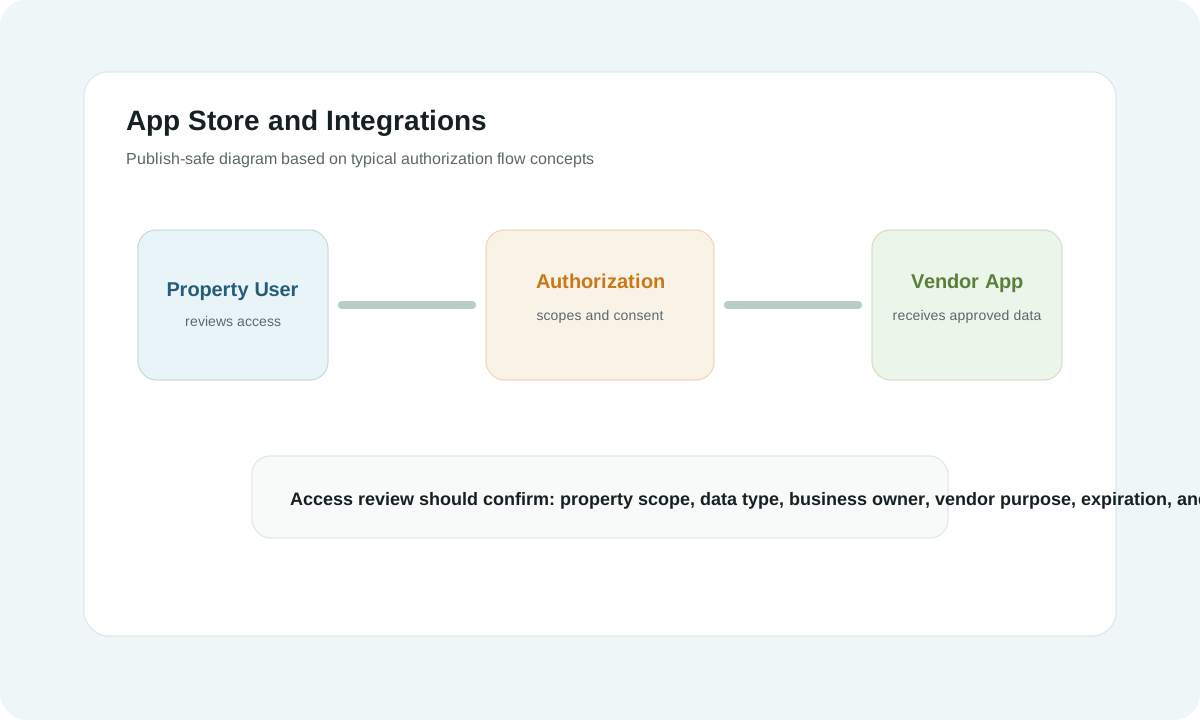
Entrata integrations can connect resident, property, leasing, payment, marketing, utility, screening, document, and vendor tools. Users should understand what data is shared and who owns the relationship.
Fix common issues
When something looks wrong, first confirm context, filters, permissions, duplicate records, pending syncs, and whether another module owns the data.
| Issue | Check first | Typical owner |
|---|---|---|
| Cannot find a resident | Property, archived status, prior name, transfer, unit history, duplicate records. | Leasing or resident services. |
| Balance looks wrong | Pending payments, reversals, deposits, manual charges, move-in setup, concessions. | Accounting or property manager. |
| Work order not visible | Status, assigned team, date filters, property, resident portal submission, permissions. | Maintenance supervisor. |
| Applicant stuck | Missing documents, screening status, payment, guarantor, quote mismatch, policy hold. | Leasing manager. |
| Report does not match | Date range, definitions, properties, user permissions, scheduled report settings. | Reporting/admin team. |
Reference
A person applying for residency, often connected to screening, documents, and application fees.
A prospect or lead record used to track preferences, source, communications, tours, and follow-up.
The resident account record showing charges, credits, payments, deposits, balances, and adjustments.
The operational process of preparing a unit for move-in, often involving inspections, cleaning, repairs, and status updates.
Resident-facing self-service experience for payments, maintenance, documents, messages, and account activity when enabled.
A maintenance request or service task with category, priority, assignment, notes, photos, and completion status.
Control mindset
A strong Entrata guide should teach the workflow and the control mindset. The goal is not just to click the right button; it is to create clean, fair, auditable property records.
Use the correct person, property, unit, amount, date, status, and module before saving.
Limit sensitive details to approved fields, documents, and restricted workflows.
Follow approved leasing, screening, collections, and resident communication policies consistently.
Leave a clear record of actions, approvals, documents, and next steps.