Plan the purchase
Confirm policy, supplier, quote, budget, category, security, tax, and timing before creating the request. Strong planning prevents slow approvals and invoice exceptions later.
Public training manual
A practical manual for employees who request purchases, approve transactions, receive goods or services, review invoices, submit expenses, and look up spend activity in Coupa.

Start here
Most Coupa work starts with a business need and ends when the supplier is paid or the employee is reimbursed. The cleanest requests include the right supplier, category, accounting, justification, and attachments before approval starts.
Click each hotspot to see what the learner should know before moving to the next step.
Confirm policy, supplier, quote, budget, category, security, tax, and timing before creating the request. Strong planning prevents slow approvals and invoice exceptions later.
Orientation
Coupa is a business spend management platform. End users usually interact with it through purchasing, approvals, receiving, invoices, supplier requests, and expense workflows.
Coupa centralizes spend requests and routes them through company policy before money is committed. It links documents together so a requester, approver, buyer, receiver, AP user, and supplier can work from one record trail.
Coupa enforces the configuration your company builds. It does not replace your procurement policy, approval authority, supplier due diligence, tax rules, budget process, data security review, or contract requirements.
Wrong supplier, category, account, quantity, price, or receiving details can delay approvals, PO delivery, invoice matching, and payment. Fixing data early is faster than clearing exceptions later.
| Role | What the user usually does | What to watch |
|---|---|---|
| Requester | Creates carts or requisitions, attaches support, tracks approvals, confirms delivery. | Supplier, price, commodity, accounting, contract, quote, and receipt accuracy. |
| Approver | Reviews requisitions, invoices, expenses, and change requests routed by policy. | Budget authority, business need, policy fit, risk, and complete documentation. |
| Receiver | Confirms goods received or services performed against a PO line. | Receiving the right line, quantity, amount, date, and evidence. |
| Buyer or procurement contact | Supports sourcing, contracts, supplier onboarding, PO questions, and change requests. | Requests stuck in buyer action, sourcing needs, supplier setup, and policy exceptions. |
| AP or invoice owner | Processes invoices, resolves match exceptions, handles payment and supplier invoice questions. | PO receipt status, invoice mismatches, remit-to data, tax, and payment terms. |
| Expense user | Creates expense reports, attaches receipts, submits for approval and reimbursement. | Policy compliance, receipt quality, categories, attendees, currency, and coding. |
Purchasing
Buying in Coupa is normally done by creating a cart that becomes a requisition after checkout. The path you choose depends on whether the item is cataloged, supplier-hosted, service-based, or unusual.
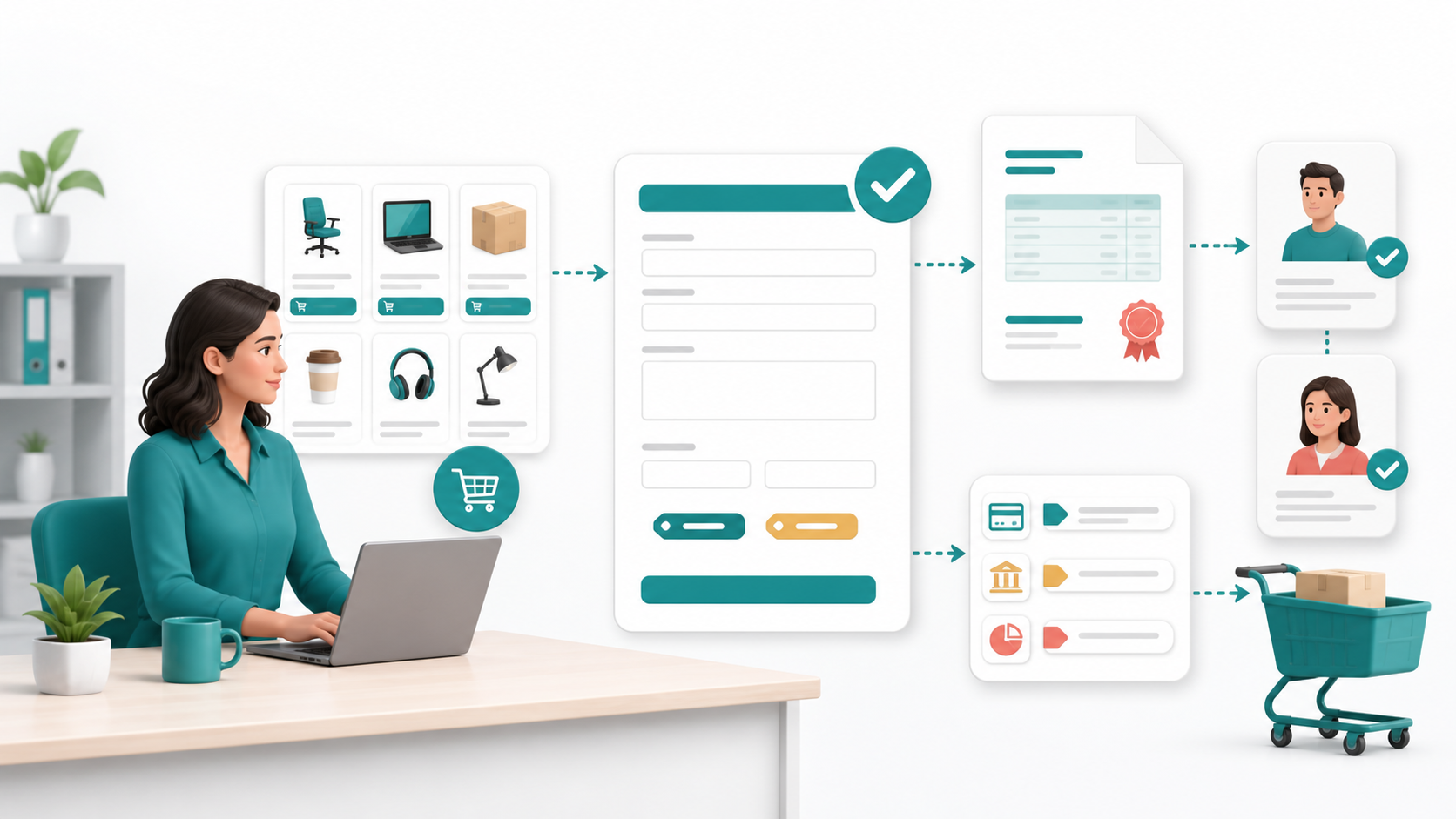
Show users where to search items, open punchouts, and start forms.
Capture ship-to, requested-for, need-by date, accounting, and attachments.
Show status, approval chain, comments, and related documents.
Use when the item is already available in Coupa with approved supplier, price, unit of measure, and category data.
Best for standard office, IT, lab, MRO, or repeat purchases.
Use when Coupa sends you to a supplier site, you build a cart there, and the cart returns to Coupa for approval.
Best for suppliers with large or frequently changing catalogs.
Use when no catalog item exists and the purchase must be described manually with price, supplier, commodity, and justification.
Best for one-time goods, services, subscriptions, and custom items.
Use when your company needs structured intake for software, contractors, events, legal review, security review, capital purchases, or supplier onboarding.
Best for controlled categories and policy-heavy spend.
| Gather this | Why it matters | Example |
|---|---|---|
| Business justification | Approvers need to understand why the spend is necessary. | Project need, customer commitment, renewal, replacement, compliance requirement. |
| Supplier details | Coupa must route the PO and invoice to the right legal supplier. | Supplier name, contact, quote, contract, remit-to, tax information if requested. |
| Price and quantity | Approval and invoice matching depend on the requested amount. | Quote line, quantity, unit price, shipping, tax, recurring cost, one-time fees. |
| Accounting | Spend must hit the right cost center, GL account, project, region, or entity. | Department, account code, project, location, business unit, split coding. |
| Attachments | Support documents reduce back-and-forth and help audit trails. | Quote, SOW, contract, renewal notice, security approval, tax exemption, sole source note. |
Document control
A requisition is the internal request to spend money. It is not usually a supplier-facing document. After full approval, Coupa can create a purchase order or another downstream document based on your configuration.
These stock status badges use consistent colors to help learners read the process quickly. Your Coupa environment may use different wording or colors, but the learning model still works: gray is draft/closed, amber is waiting, teal/green is healthy progress, blue is ordered/invoiced, and coral means action or correction is needed.
If your configuration allows it, open the approver section and add a person after the current approver, at the end of the chain, or as a watcher. A watcher receives visibility but usually cannot approve. Add approvers only when they have real authority or required context.
Use comments for durable context: what changed, why an exception is acceptable, who confirmed budget, why a supplier was selected, or what is still missing. Avoid using comments as a substitute for required fields or attachments.
Controls
Approvals help confirm that spend is necessary, budgeted, compliant, and correctly coded before the company commits money or pays a supplier.
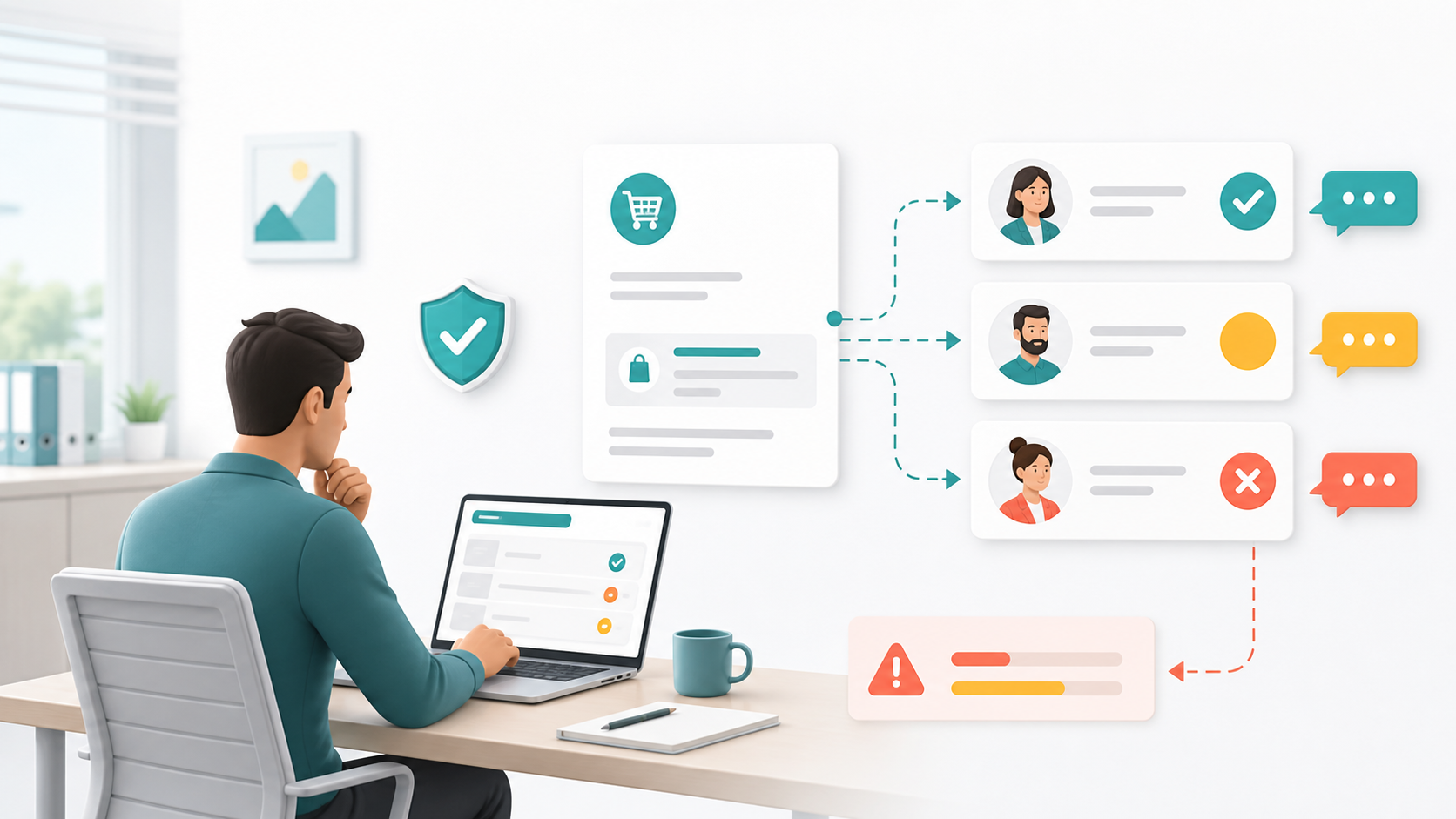
Show where pending approvals appear and how users open them.
Capture header, lines, attachments, and the approval chain.
Show the comment field and the expected detail for returned work.
Use when the request is complete and within your authority.
Use when the requester must correct the transaction or the spend should not proceed.
Use when you need clarification or want to document the approval rationale.
Use before absence so work does not wait for your return.
Your company may allow approval from email or the mobile app. Use quick approval only when the notification contains enough detail and you trust the context. Open the full Coupa record when the request is high value, unusual, missing attachments, policy sensitive, or related to an invoice exception.
Supplier commitment
A purchase order is the supplier-facing commitment created after the internal request is approved. It tells the supplier what to provide, where to deliver, and how the invoice should match.
Unless your policy explicitly allows another path, avoid asking a supplier to start work before the PO is issued. Bypassing the PO can create contract, budget, receipt, and invoice problems.
If the supplier says they did not receive the PO, verify the PO number, supplier contact, delivery method, and PO status. Then contact procurement or AP with the link.
If price, quantity, supplier, delivery, accounting, or scope changes after approval, use the change request or cancellation process. Do not rely on email promises alone.
| Question | What to check | Likely owner |
|---|---|---|
| Where is my PO? | Requisition status, approval history, buyer action, and PO number. | Requester, procurement, buyer. |
| Can I change the order? | Whether the PO was issued, received, invoiced, or closed. | Requester, buyer, procurement. |
| Can I cancel the PO? | Supplier fulfillment, receipt status, invoice status, and cancellation policy. | Requester, buyer, AP. |
| Why is the invoice blocked? | Price, quantity, receipt, tax, shipping, payment terms, or supplier data mismatch. | Requester, receiver, AP, supplier. |
Receipt confirmation
Receiving tells Coupa that the company actually received goods or services. It is often required before AP can pay invoices under 3-way match rules.
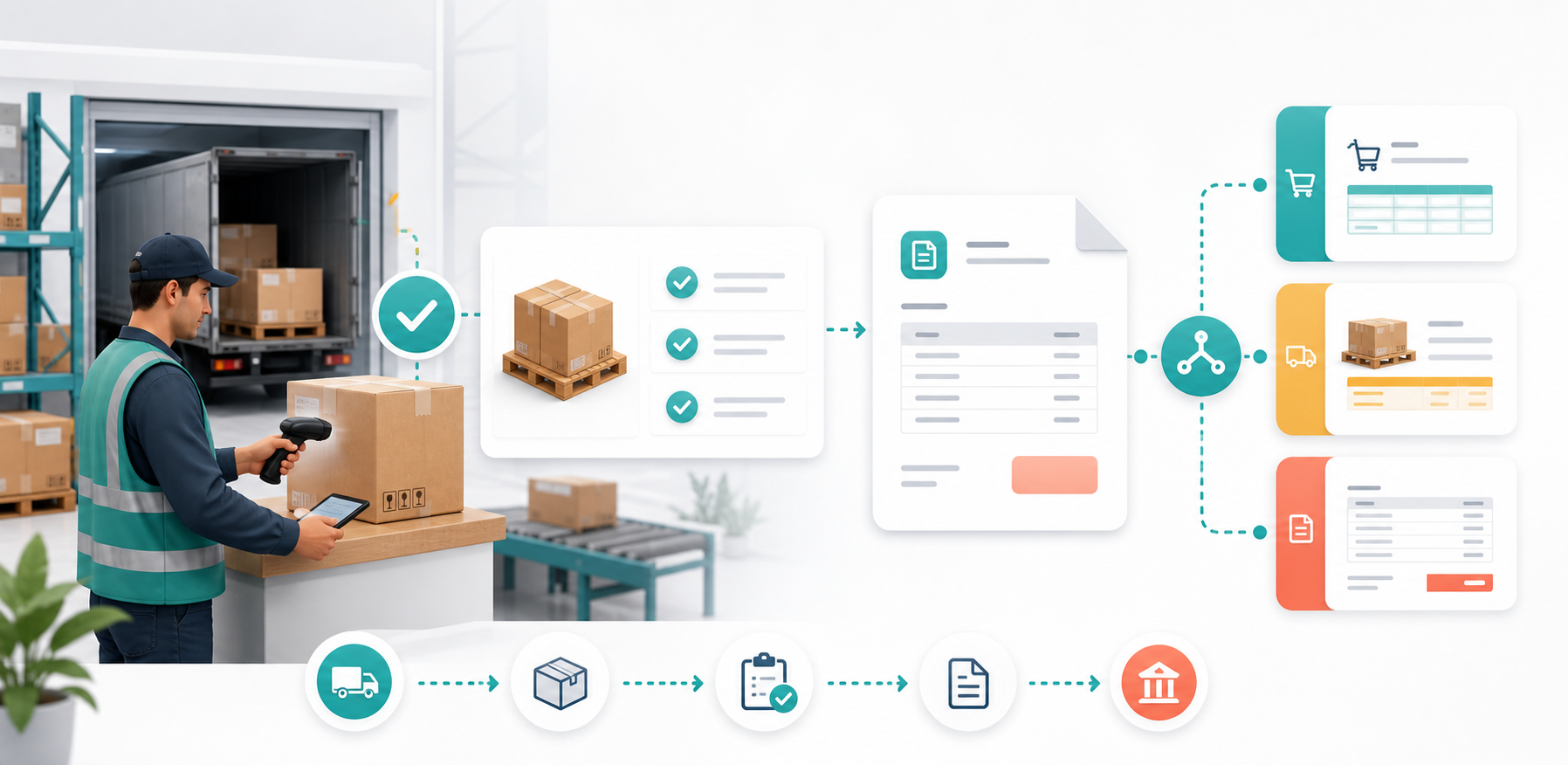
Show the button or menu users select from the PO or receiving task.
Capture quantity, amount, date, packing slip, comments, and attachment fields.
Show PO, receipt, invoice, and exception areas without sensitive data.
Receive when goods are physically delivered, services are completed, or a contractual milestone is accepted. Do not receive early just to clear an invoice unless policy permits it and the business owner confirms performance.
Receive the exact PO line, quantity, amount, or milestone that was delivered. If delivery is partial, receive only the partial amount. If the supplier substituted an item or over-delivered, contact procurement or AP before receiving.
If you received the wrong quantity or line, use the correction, void, return, or negative receipt process your company enables. Correct mistakes quickly and include a comment that explains what happened. If the invoice has already matched or paid, contact AP.
Accounts payable
Invoices usually come from suppliers through the Coupa Supplier Portal, supplier actionable notification email, cXML, or email/PDF intake depending on your company's configuration. End users mainly approve exceptions, confirm receipt, or answer AP questions.
Invoice is compared with the purchase order. Used where receiving is not required or for certain services.
Invoice is compared with purchase order and receipt. Used where receipt confirmation is required before payment.
Something does not match, such as price, quantity, tax, shipping, supplier, receipt, or coding.
AP compares the supplier invoice against the purchase order. This is common for services, subscriptions, or categories where receiving is not required.
AP compares the purchase order, confirmed receipt, and invoice. This is common for goods or services where delivery must be acknowledged before payment.
| Task | When it happens | Good response |
|---|---|---|
| Approve an invoice | Policy routes an invoice to you because you requested, own, or manage the spend. | Compare invoice to PO, receipt, contract, and actual delivery. Approve only if accurate. |
| Resolve a receipt hold | Invoice cannot match because receiving is missing or incomplete. | Receive delivered goods or services, or explain why the invoice should not be paid yet. |
| Resolve a price or quantity variance | Invoice amount differs from PO or receipt beyond tolerance. | Confirm whether the supplier invoice is correct, the PO needs change, or the invoice should be disputed. |
| Dispute or reject | Supplier billed the wrong item, amount, tax, delivery, PO, or legal entity. | Add a precise comment and route to AP, procurement, or supplier correction process. |
| Answer supplier payment questions | Supplier asks about payment status or invoice handling. | Direct suppliers to the approved supplier channel or AP contact. Do not promise payment outside AP terms. |
Employee spend
If your company uses Coupa Expenses, employees can create expense reports for reimbursement or corporate card reconciliation. Expense features vary widely by company policy.
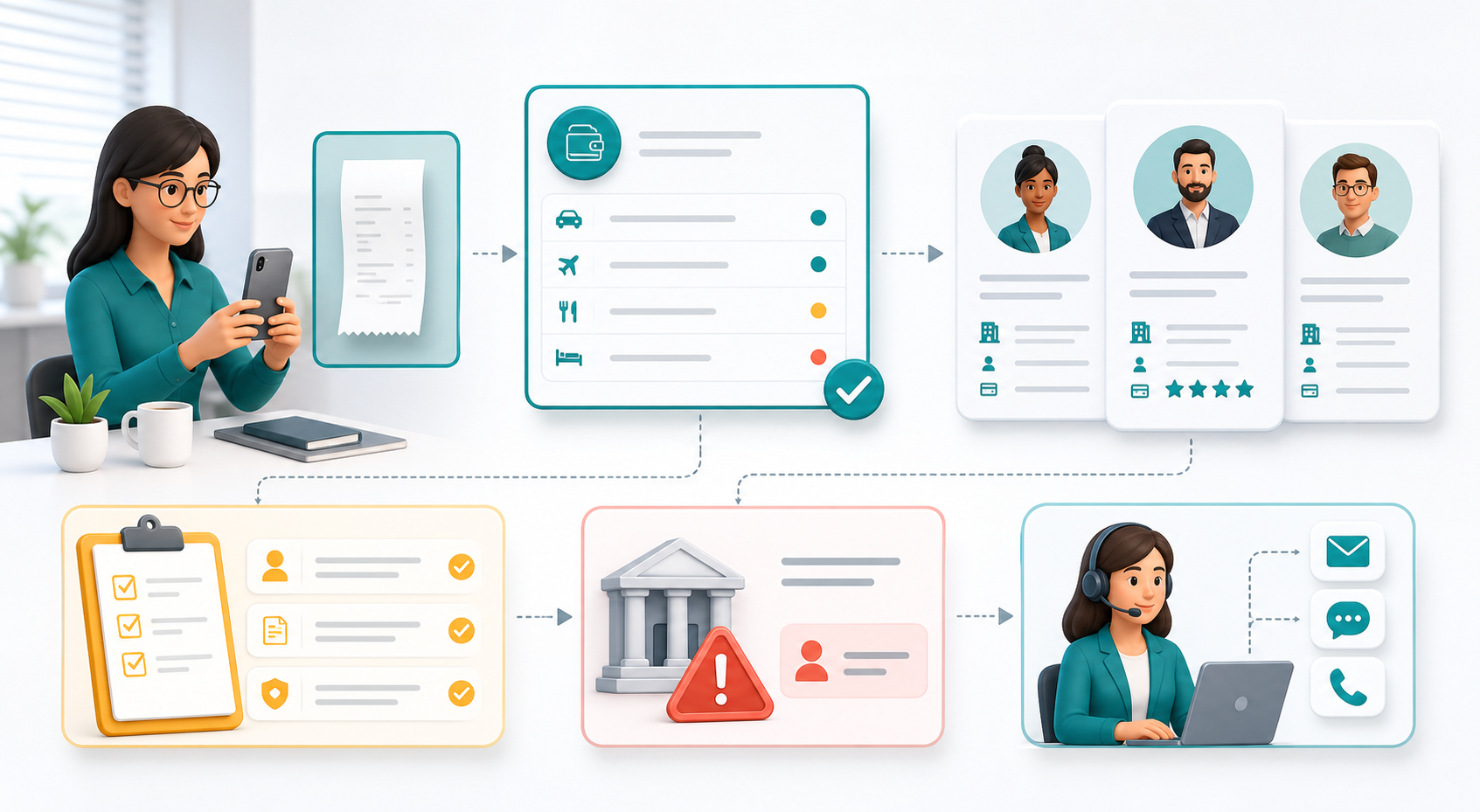
Show report header, line categories, receipt attachments, and policy warnings.
Capture the fields needed to request or update a supplier.
Show where users go for procurement, AP, expense, or IT help.
Collect receipts, trip purpose, attendee list, merchant, date, amount, currency, exchange rate, project, client, and policy justification.
Start a report, choose expense categories, enter line details, attach receipts, and code each line correctly.
Review warnings, fix policy errors, add comments for exceptions, and submit to the approval chain.
Monitor approval, reimbursement, card matching, and returned reports in Activity or expense history.
Supplier data
Supplier setup is usually controlled because supplier master data affects contracting, risk review, tax reporting, invoicing, and payment. Always search before requesting a new supplier.
Confirm the supplier is not already active under a legal name, DBA, parent company, or alternate spelling.
Provide business reason, category, expected spend, contact details, quote or contract, and any risk information.
Procurement, AP, tax, legal, security, privacy, or risk teams review the supplier before use.
The supplier may need to provide tax, address, contact, payment, insurance, banking, and portal information.
Only create the purchase request after the supplier is approved and active. Do not promise work or payment before approval.
Visibility
Most day-to-day questions can be answered from the document record: status, approval chain, comments, attachments, history, related PO, receipt, invoice, and payment information.
Find aging requests, blocked approvals, POs pending receipt, invoices on hold, and supplier setup tasks before they become escalations.
Use related documents, comments, approvals, attachments, and history to explain who did what, when, and why.
Review spend by supplier, commodity, requester, department, project, period, or status when your role has access.
Track invoice mismatches, missing receipts, returned expense reports, supplier data issues, and policy exceptions.
| Need | Where to look | Helpful filters |
|---|---|---|
| Find my request | Activity, My Requests, or search. | Requester, status, supplier, date, requisition number. |
| Find a PO | Orders, Activity, related documents. | PO number, supplier, requisition, order status. |
| Find approvals waiting on me | Home, To Do, approval inbox. | Document type, age, amount, requester. |
| Find invoices needing action | Invoices, To Do, AP exception views. | Status, hold reason, supplier, PO, request owner. |
| Audit what happened | History, comments, approvers, related documents. | Timestamp, user, action, comment, attachment. |
| Support inventory audits | Orders, receiving history, asset or inventory exports if enabled. | PO line, item, delivery location, requester, receipt date, remaining quantity. |
| Review invoice history | Invoices and related PO records. | Supplier, invoice number, PO, status, hold reason, payment date, fiscal period. |
| Monitor supplier activity | Supplier record, onboarding tasks, PO and invoice activity. | Supplier status, category, owner, last transaction, pending forms. |
If Coupa allows saved views, create views for work you repeat: pending approvals older than 3 days, requisitions pending buyer action, POs pending receipt, invoices on hold, or expenses returned by approver. Name views clearly and avoid private abbreviations that others cannot understand.
Managers only
Assume mobile access is enabled only for managers. The mobile experience should help managers clear approvals and respond to time-sensitive work, not replace full desktop review for complex transactions.
Approve low-risk requisitions, invoice approvals, and expense reports when the notification contains enough detail.
Use the full web app when the item is high value, policy sensitive, attachment-heavy, supplier-risk related, or tied to an invoice exception.
Manager notifications should focus on approvals waiting for action, returned work, comments that need response, and SLA-sensitive exceptions.
| Notification | Recommended channel | Manager action |
|---|---|---|
| New approval assigned | Email and mobile push | Open the record, review essentials, approve or return with a clear comment. |
| Approval aging or SLA reminder | Mobile push | Act the same day or delegate if you are unavailable. |
| Requester comment or clarification | Respond in Coupa so the decision trail stays with the transaction. | |
| Invoice or expense exception routed to manager | Email, then desktop review | Use desktop for line-level review, attachments, receipt validation, or dispute notes. |
Help
When asking for help, include the document number, link, supplier, status, screenshot if allowed, what you expected, what happened, and the deadline or business impact.
| Problem | Likely cause | What to do |
|---|---|---|
| Cannot log in | Wrong URL, SSO issue, inactive user, MFA setup, or role not assigned. | Use the official company link, try SSO again, then contact IT or Coupa admin. |
| Cannot find a supplier | Supplier not onboarded, duplicate naming, inactive record, or restricted access. | Search by legal name and domain, then submit a supplier request if no match exists. |
| Request stuck in pending approval | Approver has not acted, delegated incorrectly, or routing found a missing approver. | Check approval chain, add a comment, remind approver, or contact procurement/admin. |
| Request stuck in buyer action | Procurement review, sourcing, contract, supplier, or category policy issue. | Read comments, provide missing details, and contact the named buyer or procurement queue. |
| PO not sent to supplier | PO transmission failure, wrong supplier contact, blocked supplier, or approval not complete. | Verify PO status and supplier contact, then ask procurement/AP to resend or correct. |
| Cannot receive | You are not the receiver, PO line is closed, receiving is not required, or permissions are missing. | Check requested-for user and PO line status, then ask procurement or Coupa admin. |
| Invoice on hold | Missing receipt, PO mismatch, price variance, tax issue, or supplier data problem. | Open the hold reason, correct receipt or PO data, comment for AP, or dispute with supplier. |
| Expense returned | Missing receipt, wrong category, policy exception, attendee issue, or coding error. | Read approver comment, revise the line, add support, and resubmit. |
| Search results are poor | Wrong filter, date range, status view, supplier name, or document type. | Clear filters, search by document number, widen date range, and use related documents. |
Reference
Use these plain-language definitions when training new users or writing local support articles.
Financial segments such as cost center, GL account, department, project, region, or entity.
The ordered list of people or groups that must approve a transaction.
A procurement review step before a requisition can continue or become a PO.
An approved item with predefined supplier, description, price, and category data.
Spend category used for classification, routing, reporting, and policy control.
A supplier-facing portal where suppliers can manage POs, invoices, and related customer activity when enabled.
A mismatch or policy issue that prevents straightforward invoice approval or payment.
A manually entered purchase request for an item or service not found in the catalog.
The supplier-facing order document generated after approval.
A supplier website launched from Coupa that returns a cart to Coupa for approval.
Confirmation that goods or services were delivered or accepted.
The internal request to buy goods or services.
A user who receives visibility or notifications but normally does not approve.
Control model
A good end-user guide should teach the workflow and the control mindset. The goal is not just to click the right button; it is to create clean, auditable spend records.
Use approved suppliers, preferred contracts, and required forms. Do not split purchases to avoid approval thresholds.
Approvers should not need to guess. Put the business reason, project, quote basis, and exception rationale in the record.
Do not attach confidential, personal, health, payment, or customer data unless policy allows it and the transaction requires it.
Use comments and attachments so future reviewers can understand decisions without hunting through email.
Only receive what was delivered or accepted. Receipt quality directly affects invoice payment.
If a supplier, PO, invoice, or payment is time-sensitive, add that context before deadlines become emergencies.